Teacher Help Centre

How to Create Your Video Bio

Help Families Get to Know You Before They Book

Make a Great First Impression on Video

A video bio lets families see you, hear how you teach and feel comfortable before they book. Keep it short, friendly and focused on the students you help. Follow this guide to record your video, then share it in one of two ways.

What to Include in Your Video Bio

Introduce Yourself

Start by telling families who you are:

  • Your first name. For privacy, use your first name only.
  • What you teach. The grades and subjects you specialize in.
  • Your background. Your qualifications, certification and teaching experience.

Show How You Teach

Let families picture a lesson with you. You could cover:

  • What a lesson with you looks like: interactive, structured, hands-on?
  • Your favourite methods and materials: games, manipulatives, digital tools, real-life examples.
  • Special education experience: if you have worked with students with IEPs, ADHD, autism or dyslexia, say so.
  • What you specialize in: exam preparation, early reading, French immersion, high school math.
  • Why you love teaching: one or two sentences about what keeps you going.

End With an Invitation

Close with a friendly line that invites families to book their first tutoring lesson with you, and thank them for watching.

‍

A woman sits in a well-lit room, smiling softly at the camera, seated at a desk with a laptop, in a calm, tidy space.

What to Avoid

  • Personal information: no last name, phone number, email or address.
  • Filters or effects: no filters, borders or special effects.
  • Other people: just you in the video.
  • Slideshows or demo lessons: talk to the camera instead.
  • Logos or links: no logos or links to other websites or platforms.

Two Ways to Share Your Video

Choose the way that suits you best.

Option 1: Publish It on YouTube and Add the Link to Your Profile

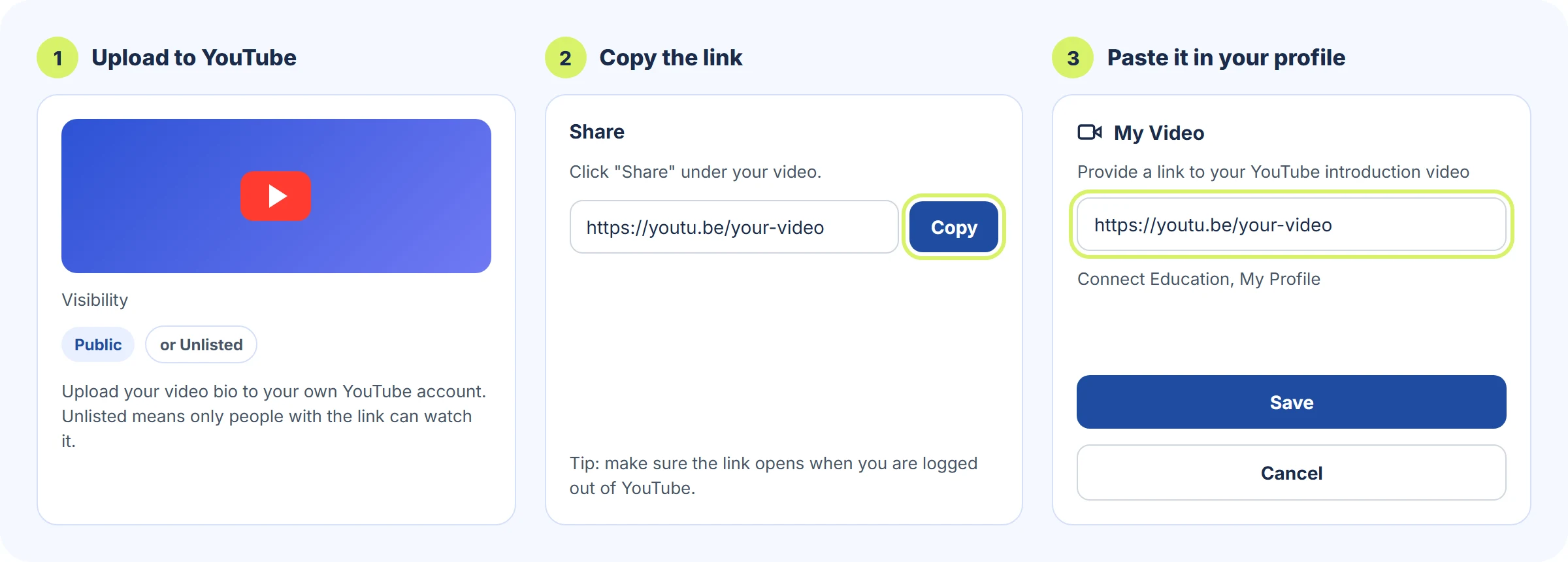
  1. Upload your video to your YouTube account and set it to "Public" or "Unlisted".
  2. Click "Share" under the video and copy the link.
  3. Log in to Connect Education, go to your profile, find "My Video", paste the link in "Provide a link to your YouTube introduction video" and click "Save".
Three steps: upload your video to YouTube as Public or Unlisted, copy the share link, then paste it in My Video on your Connect Education profile and click Save.

Option 2: Send It to Us to Review

Email your video to marketing@connecteducationinc.com with the subject line "Video Bio - [First Name] [Last Name]" and name the file FirstName_LastName. If the file is large, send a link from Google Drive, OneDrive or WeTransfer. Our team reviews your video, checks it against these guidelines and can edit several short clips into one video for you.

Digital Consent Form

Whichever way you choose, fill out the consent form below so we can use your video on the channels you pick.

What am I consenting to? *

Tick each place you are happy for your photo, video or bio to appear. You can agree to some and not others, and you can change your mind later by writing to us.

Additional Resources for Your Success

A smiling Connect Education customer care advisor in glasses and a yellow cardigan holding a phone
We are here to help

Talk to a real person

Questions about matching, scheduling or pricing? Reach us whichever way suits you, and our team will take it from there.


Become a Tutor