
Tutoring Services Across Canada

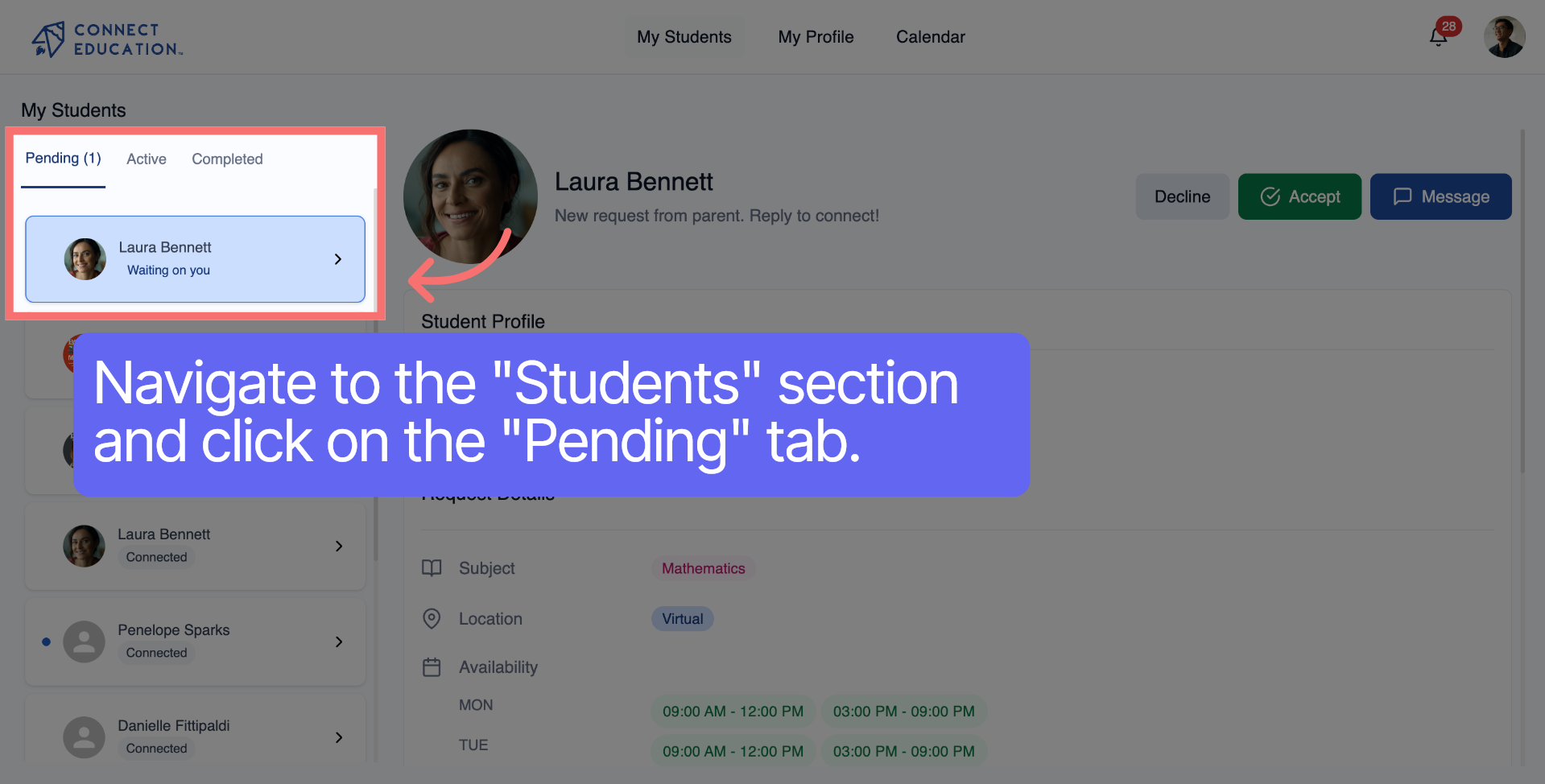
Navigate to "My Students," click on the "Pending" tab, and look for a parent request.
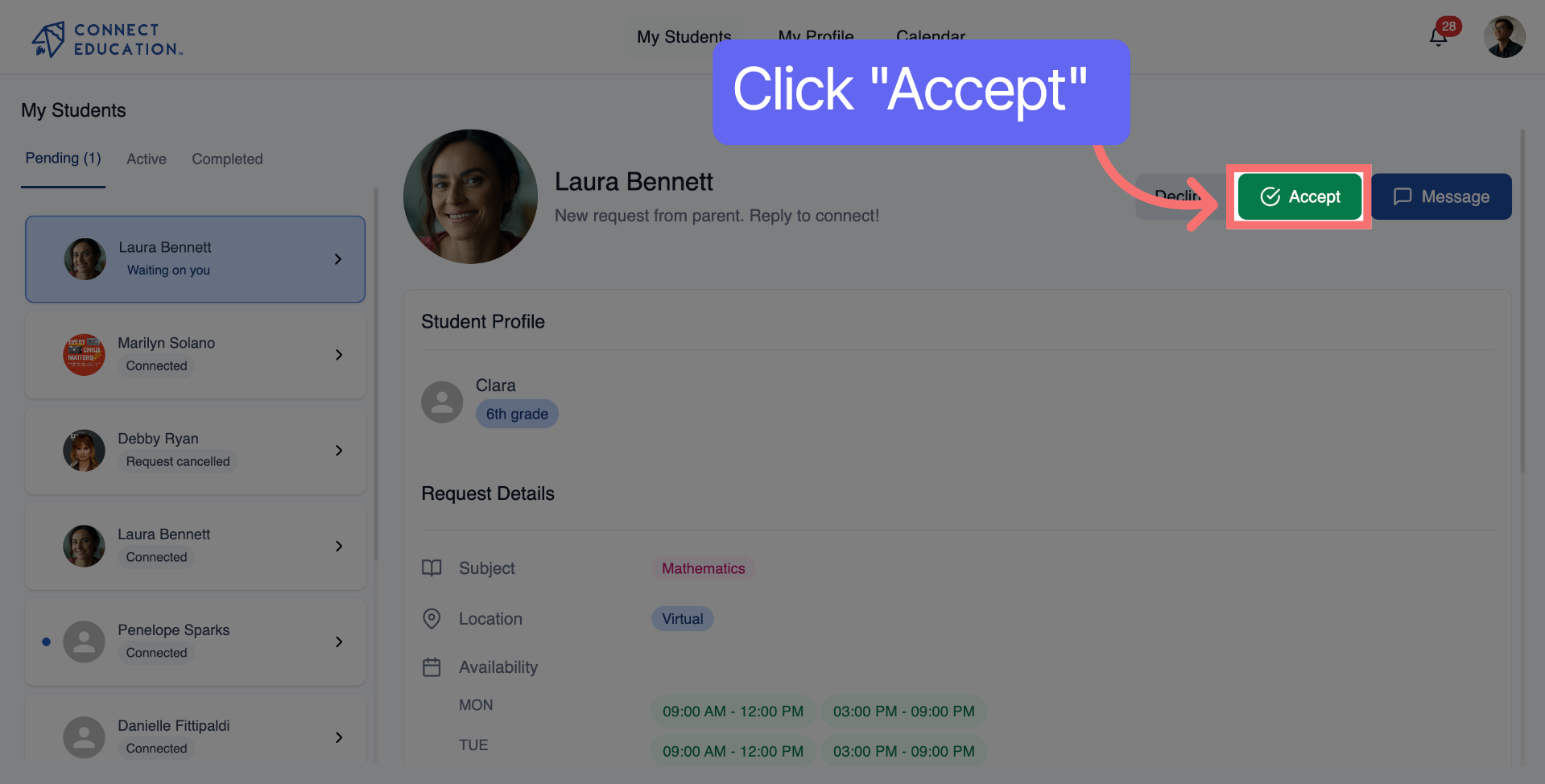
Click the "Accept" button to approve the request and proceed with the hiring process.
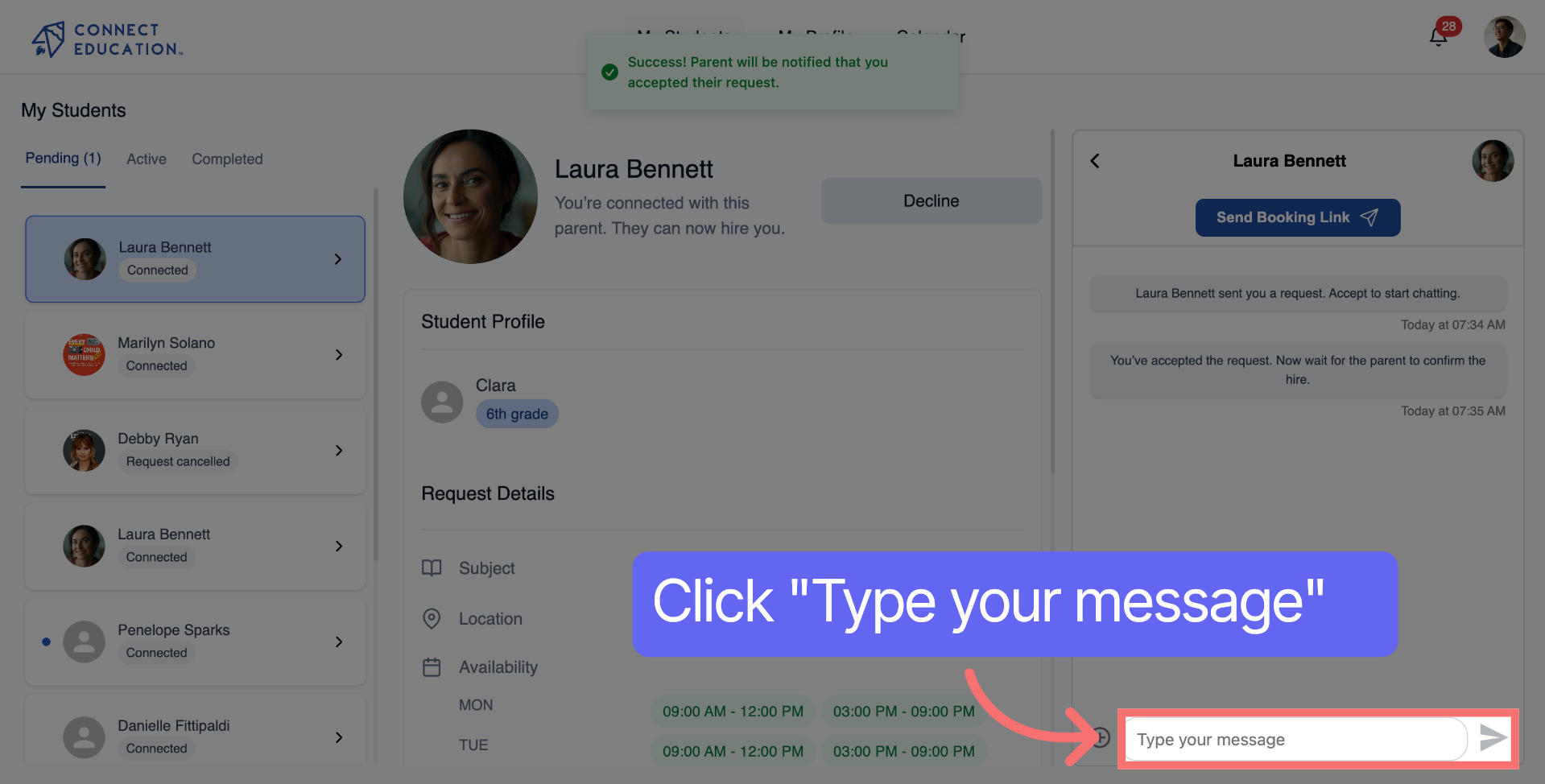
Click the "Message" button to start composing a message to the requester.

To start typing your message, click on the area labeled "Type your message" to activate the text input field.
Engage in a conversation with a parent to discuss their request, the needs of their child, and establish a schedule.
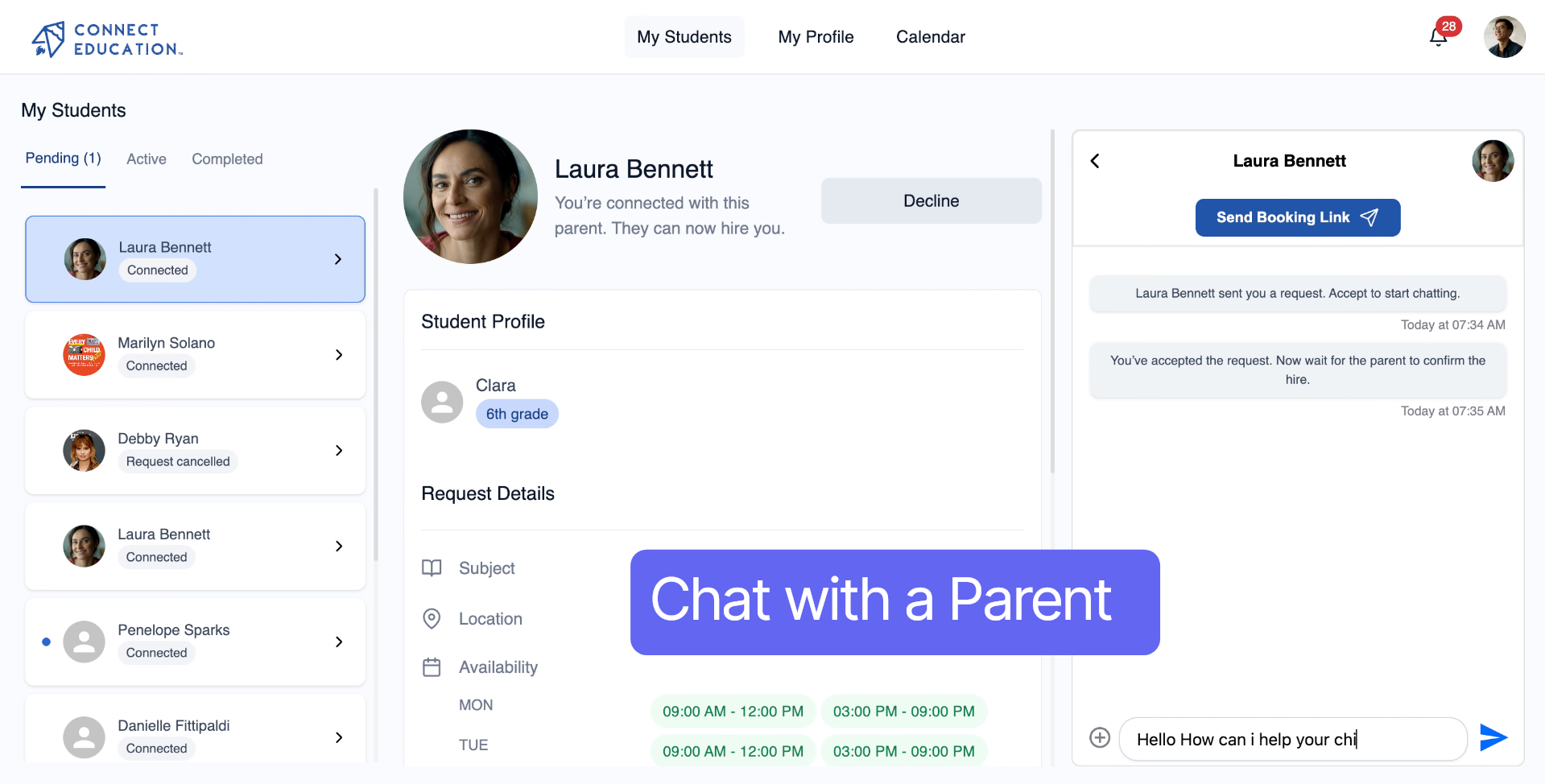
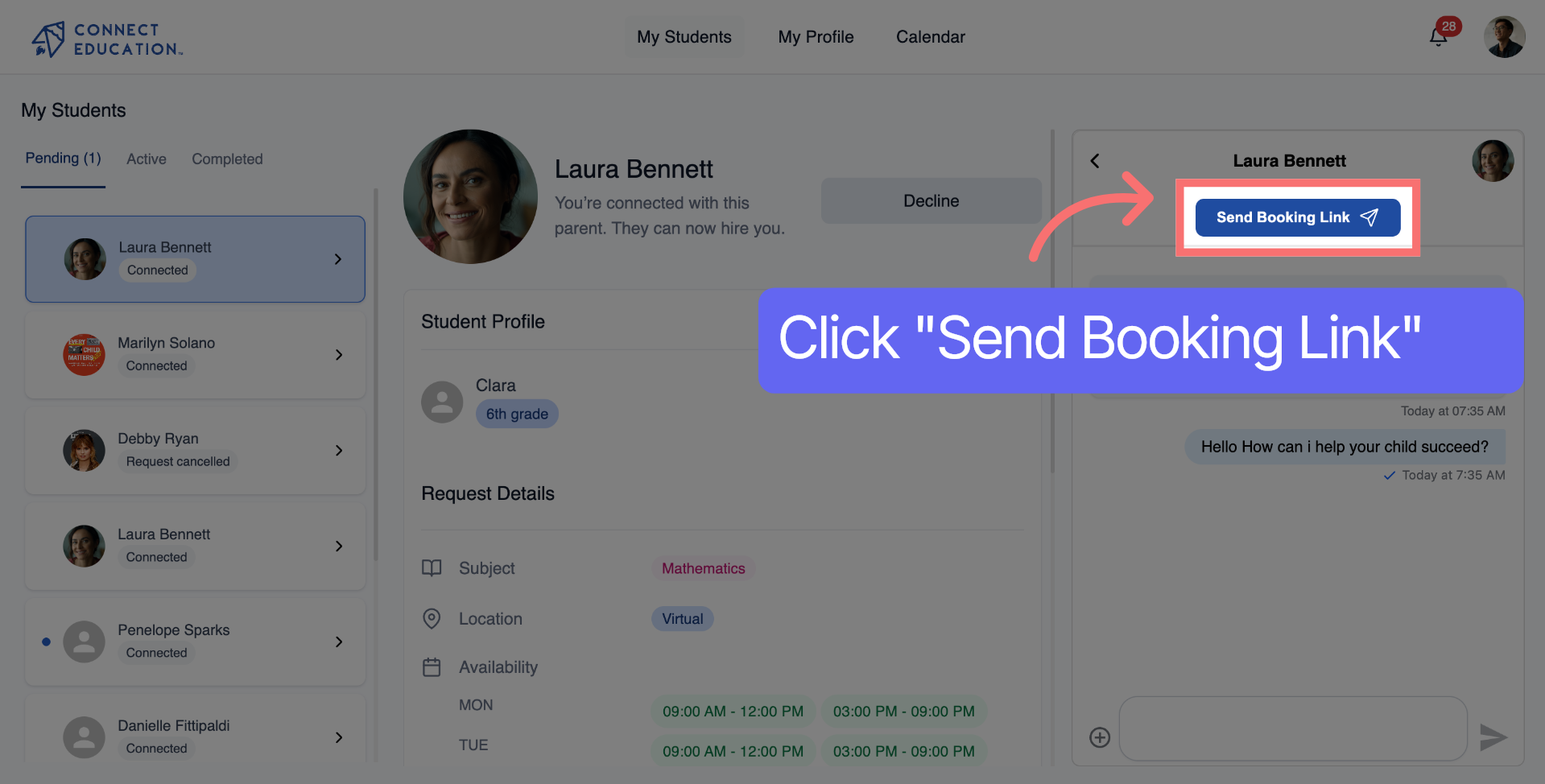
Click the "Send Booking Link" button to prepare the hire link for sending.
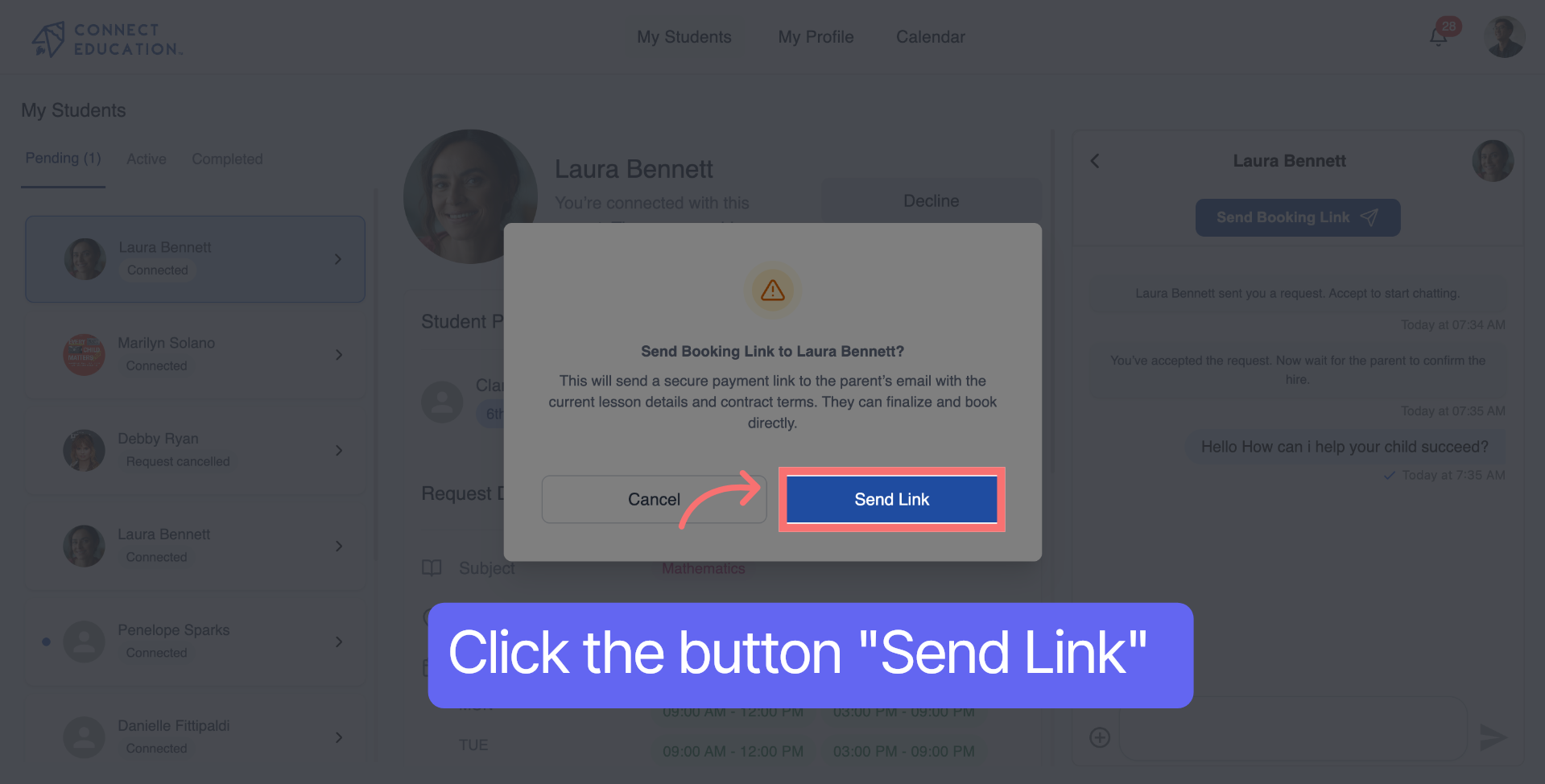
Click the "Send Link" button to send the hire link to the requester. The parent will receive an email and SMS notification with the link to make the payment for the contract.



Questions about matching, scheduling or pricing? Reach us whichever way suits you, and our team will take it from there.


