
Teacher Help Centre

How to Set Your In-Person and Virtual Lesson Rates

Make Sure Families See the Right Price Before They Book

Keep Your Rates Accurate and Up to Date

Your lesson rates appear directly on your Connect Education tutor profile and help families choose the right tutor for their budget. Keeping both your in-person and virtual rates accurate increases your chances of getting booked by the right students. Follow these steps to update your rates.

Step 1: Log In as a Teacher

Log in to your Connect Education account, then click "My Profile" in the top navigation to open yourprofile page.
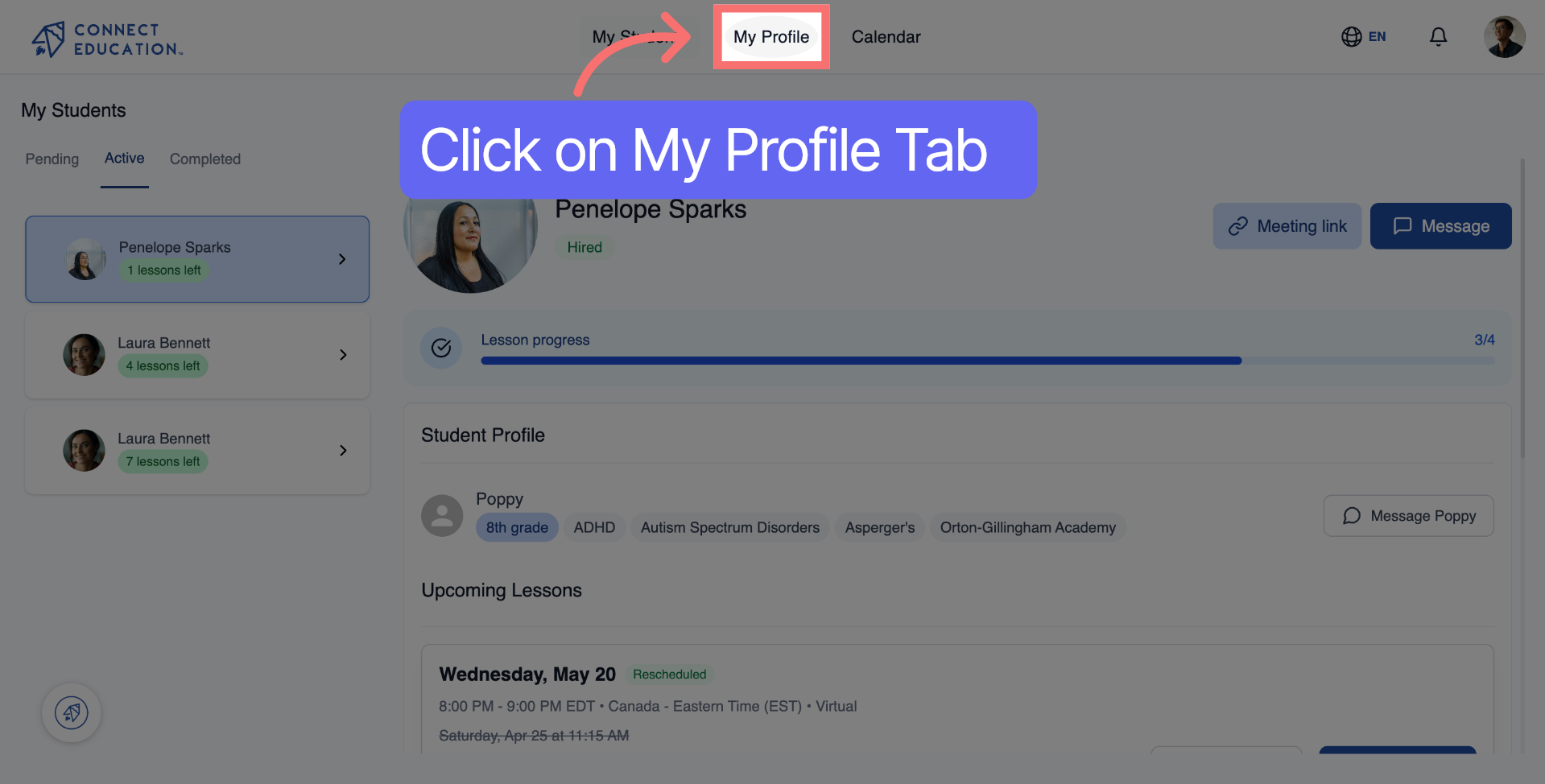
Access Your Profile Page

Step 2: Open Profile Settings

Click the pen icon on your profile page to access the editing options for your rates and personal details.

Open Profile Settings

Step 3: Set Your In-Person Rate

In the first section, enter the rate you want to charge per in-person lesson.
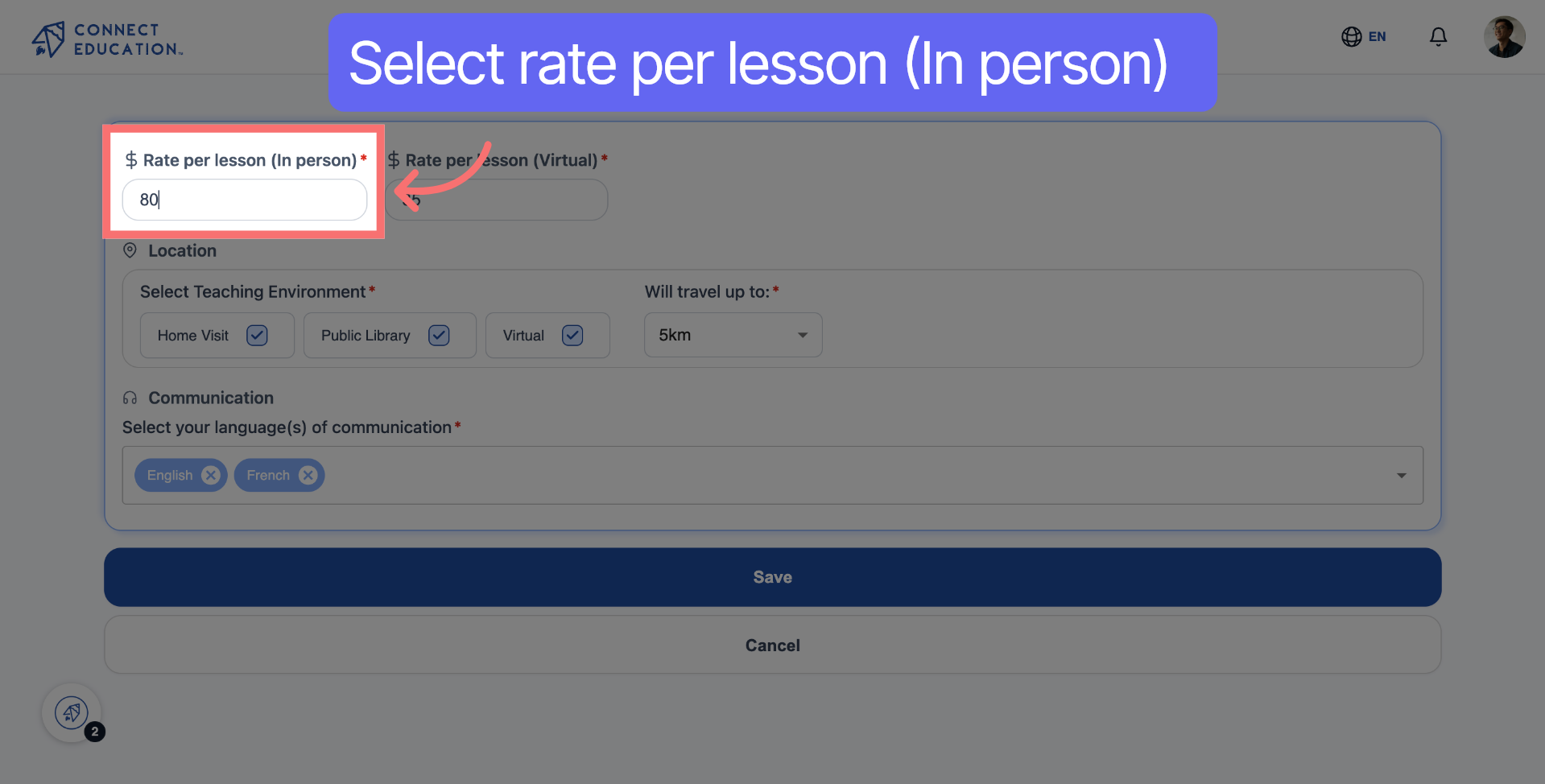
Select Current Score Value

Step 4: Set Your Virtual Rate

Move to the next section and enter the rate you want to charge per virtual lesson.

Choose Another Score Value

Step 5: Save Your Changes

Click "Save" to confirm and publish your updated rates to your profile.
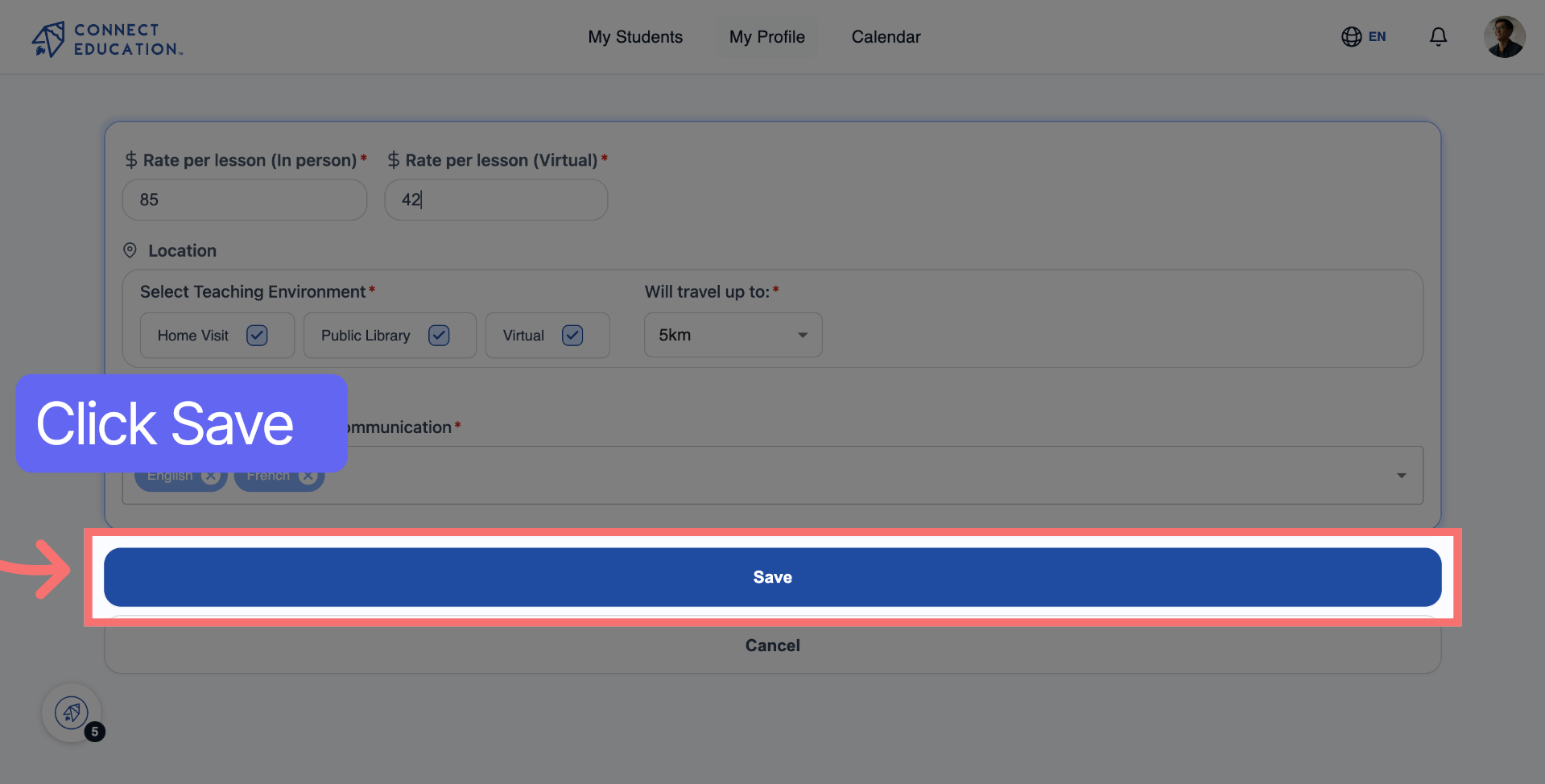
Save Profile Changes

Additional Resources for Your Success

A smiling Connect Education customer care advisor in glasses and a yellow cardigan holding a phone
We are here to help

Talk to a real person

Questions about matching, scheduling or pricing? Reach us whichever way suits you, and our team will take it from there.