
Tutoring Services Across Canada

Log in to a Parent account on the Connect Education Platform.
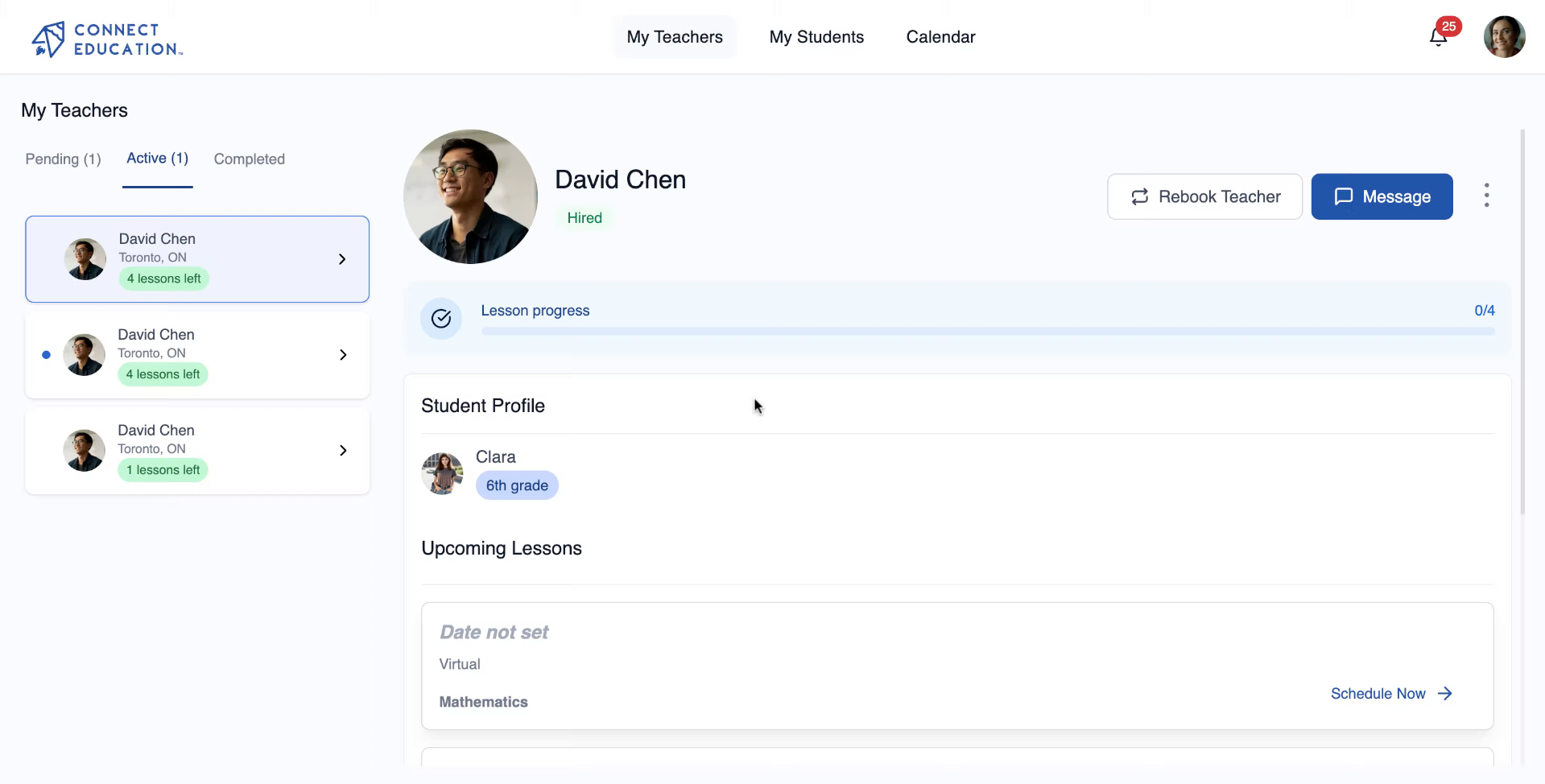
Click the My Students section to view your list of students associated with your account.
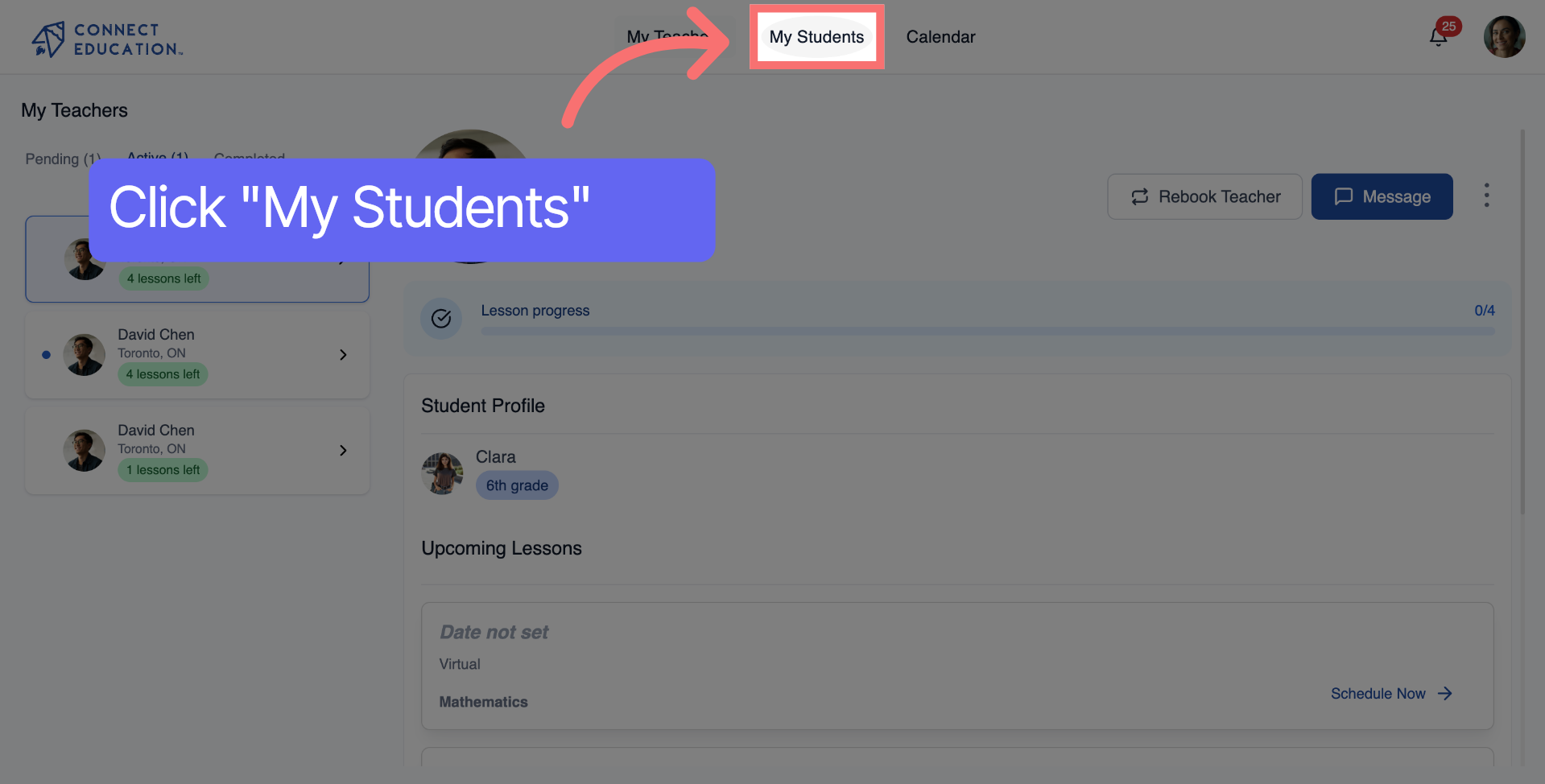
Select a student to access their profile for managing permissions.
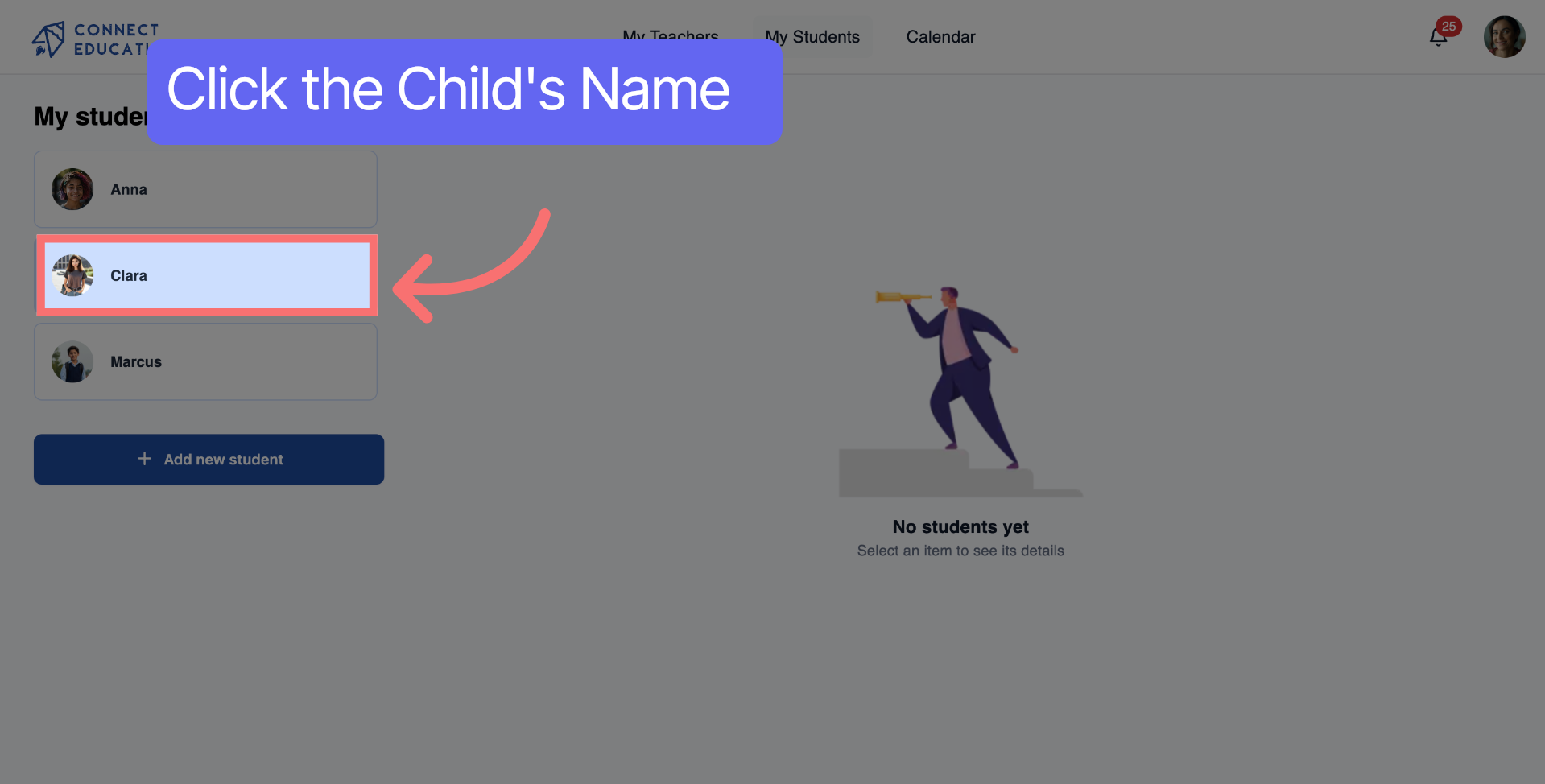
Click the "Give Student Access" button to begin granting access to the student.
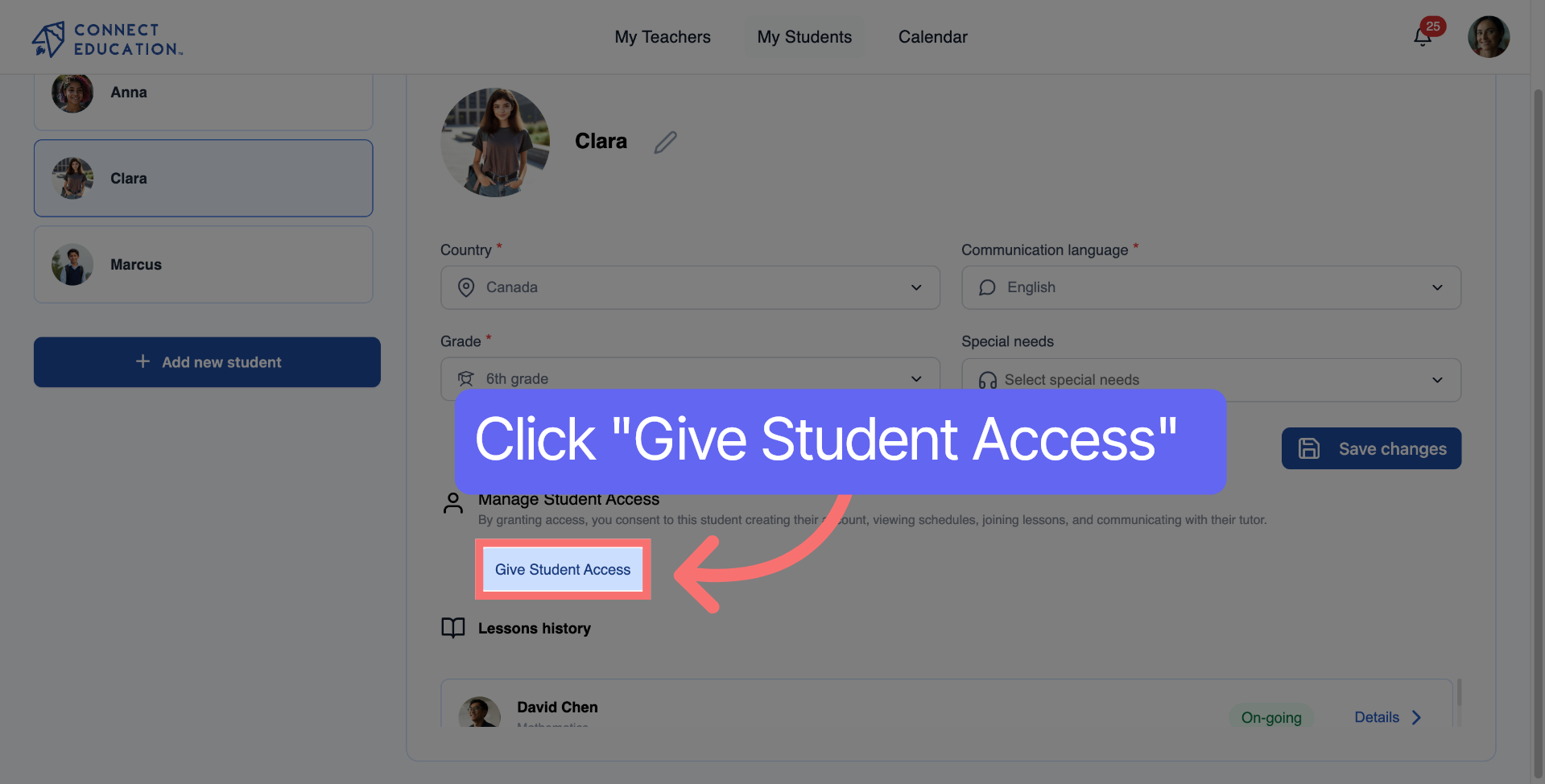
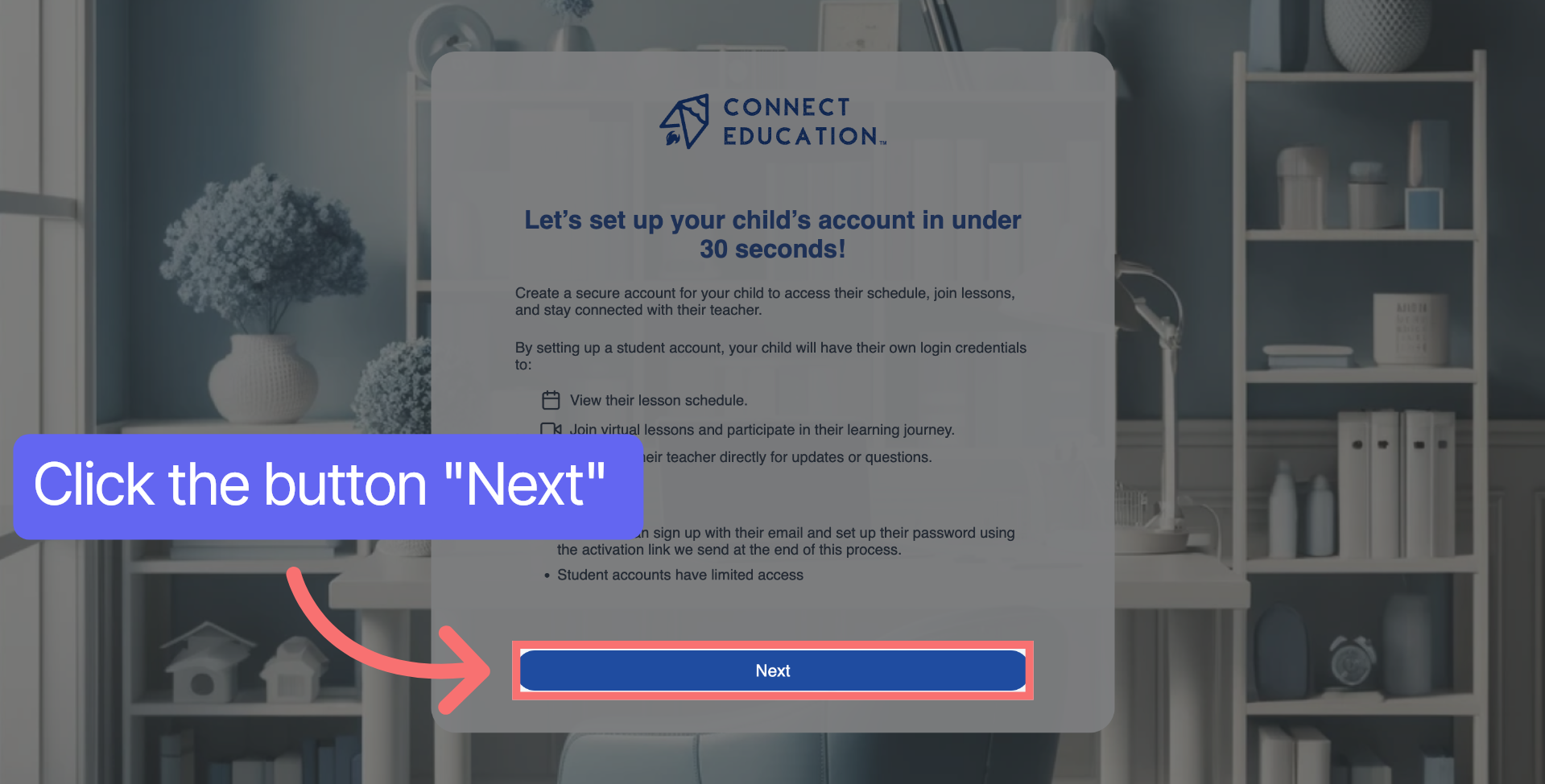
Click "Next" to proceed to the access agreement and verification stage.
Enter your child's email address to send the activation link for account access.
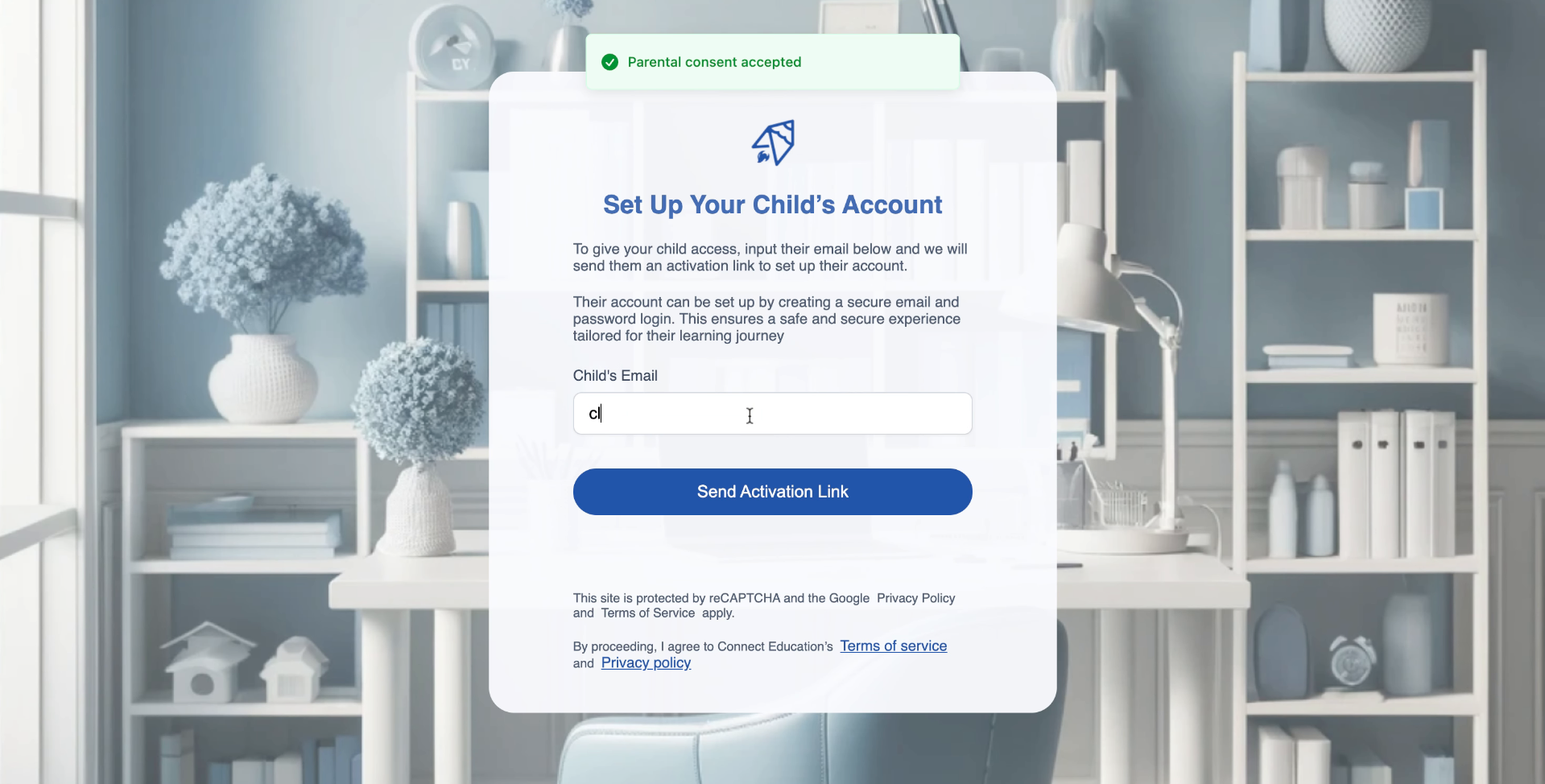
Click "Send Activation Link" to send the access invitation to your child's email.

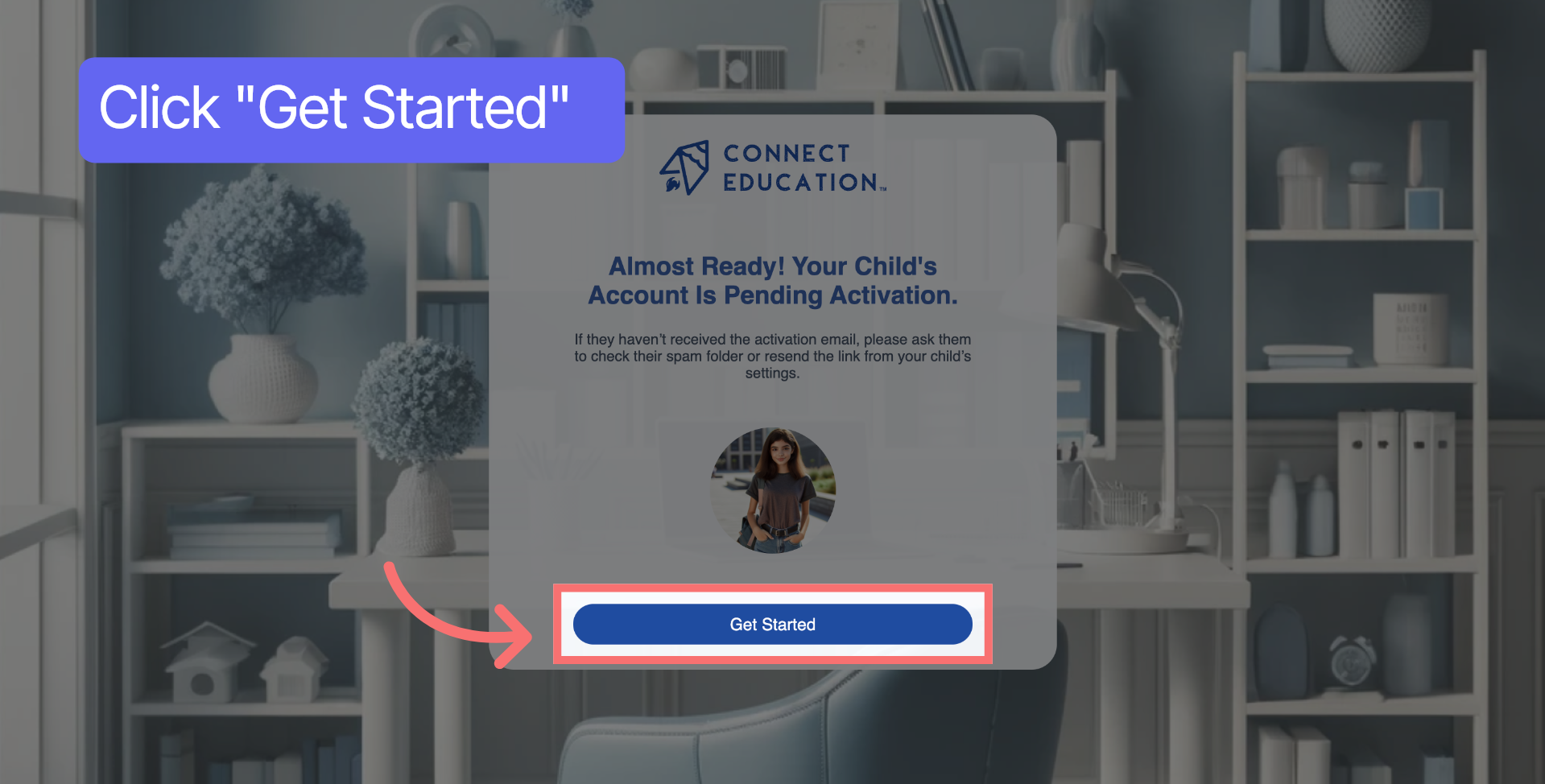
The student will receive an activation email and must follow the verification instructions. Click "Get Started" to begin the account setup process.
Click Password to open the field where you will create a secure password.
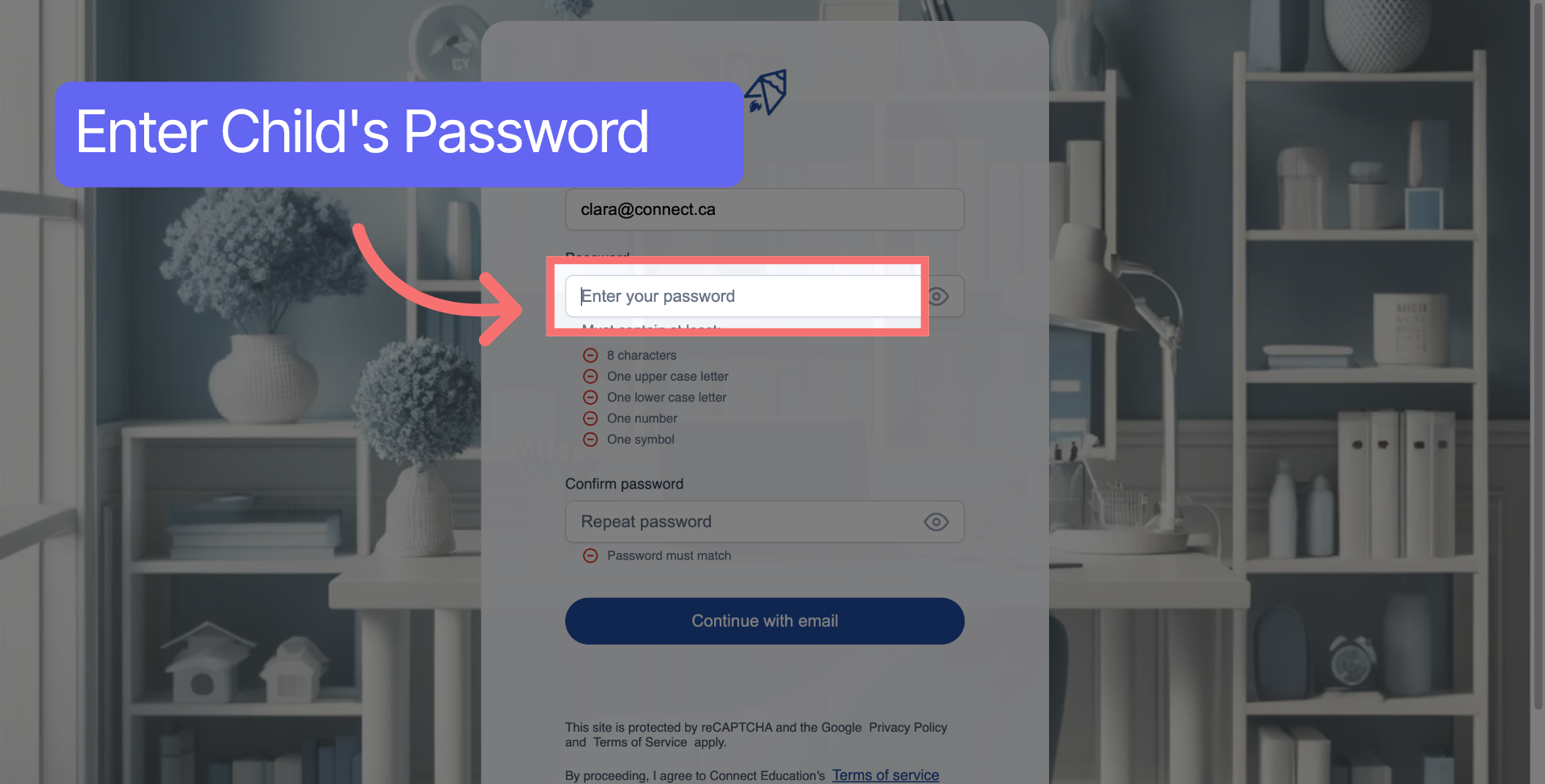
Click Confirm password to verify the password you just entered.
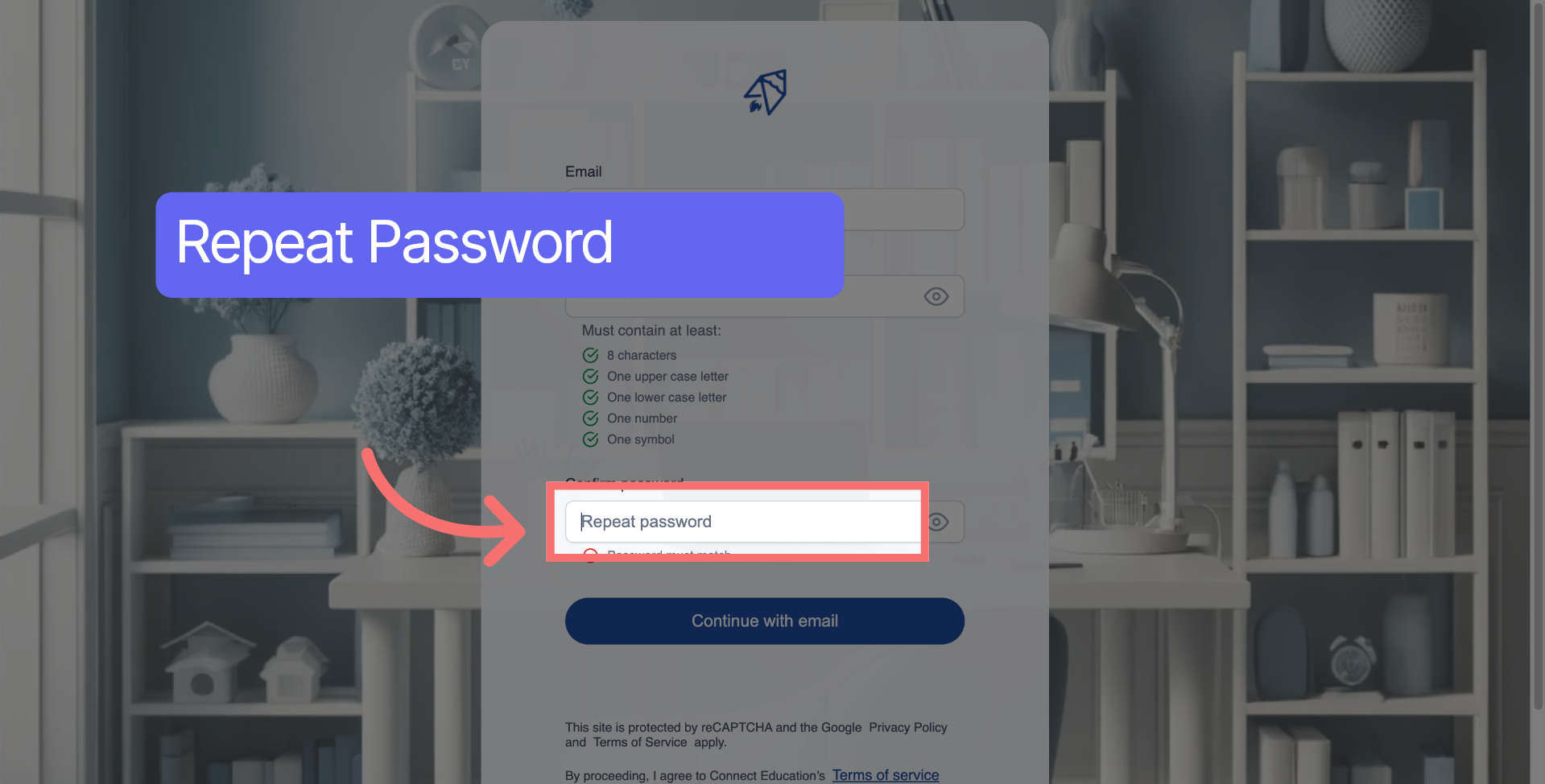
Click Continue with email to proceed using your email credentials for login.

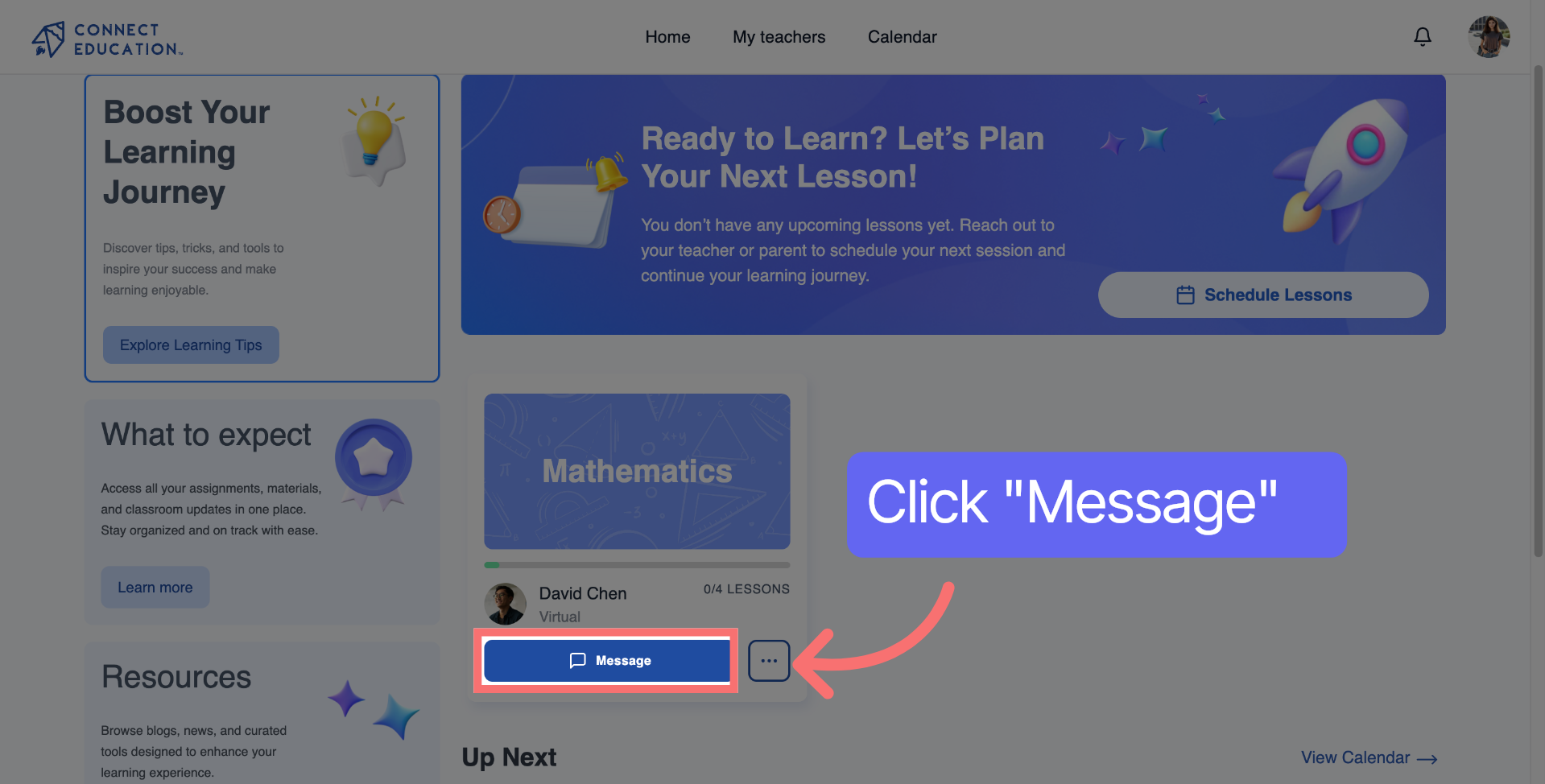
You are now logged into your student account. Click on "Message" to communicate with your teacher.
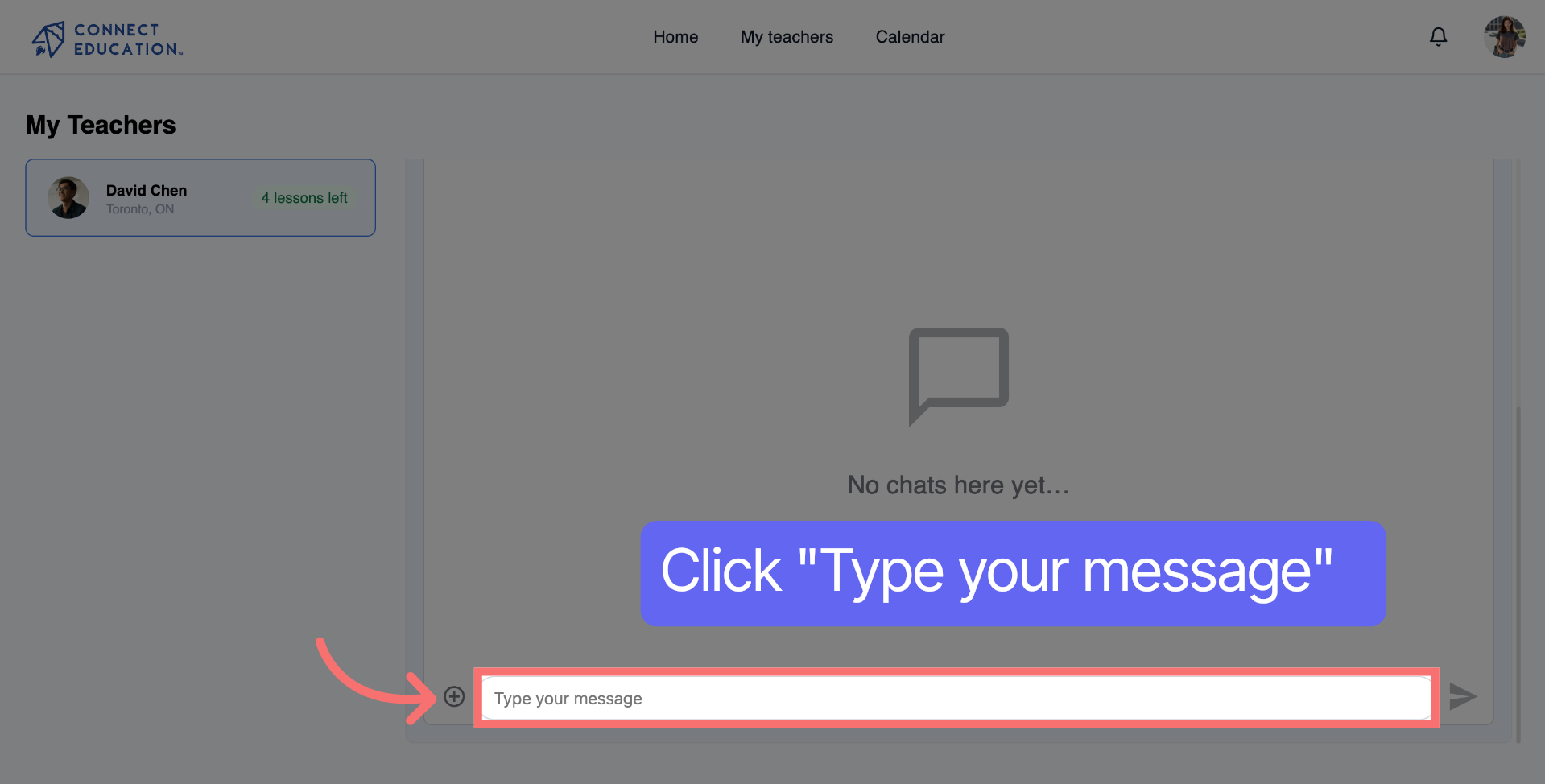
To start composing a new message, click "Type your message" to begin.
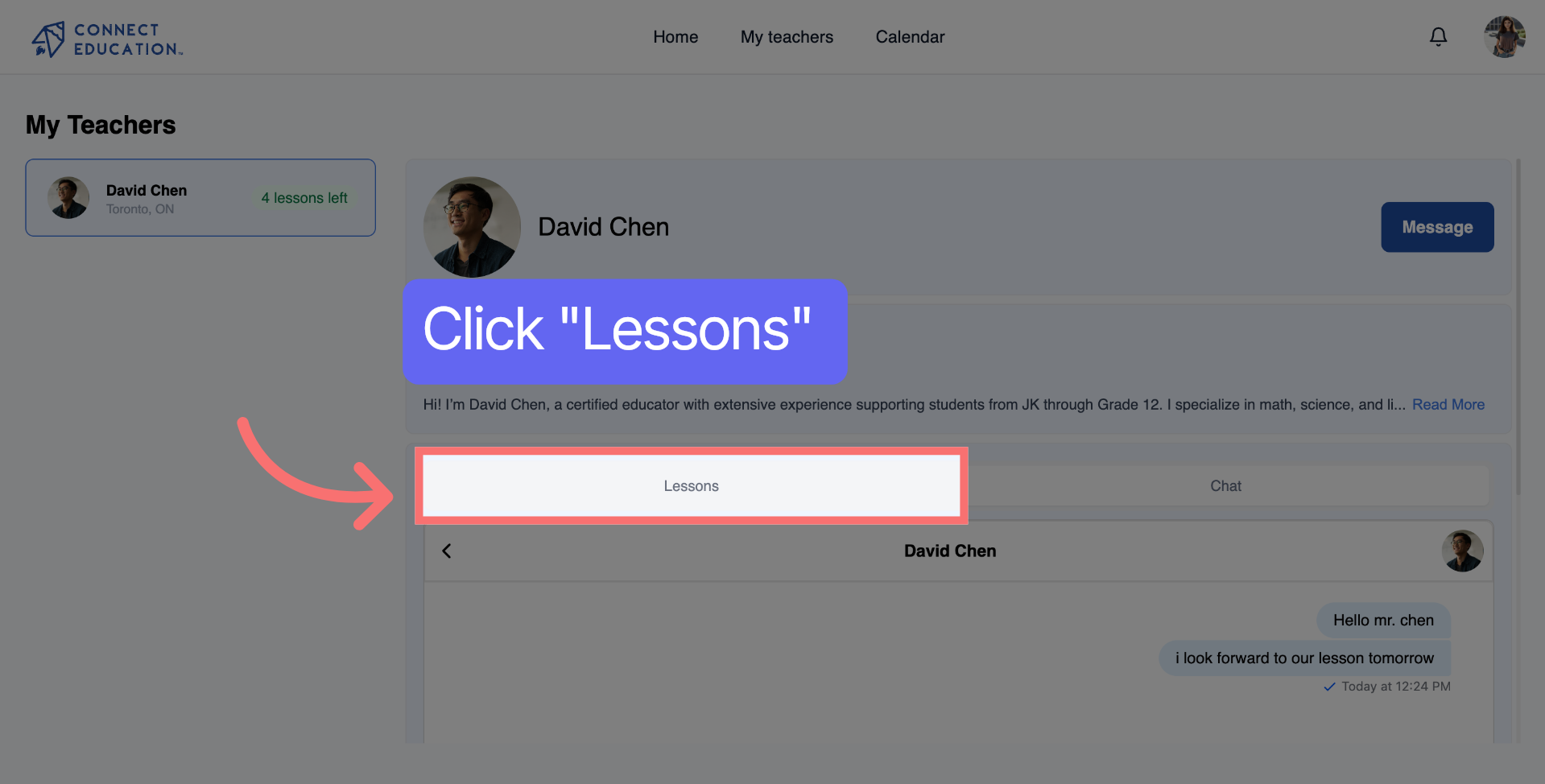
Click Lessons to view and manage lesson schedules for the student.
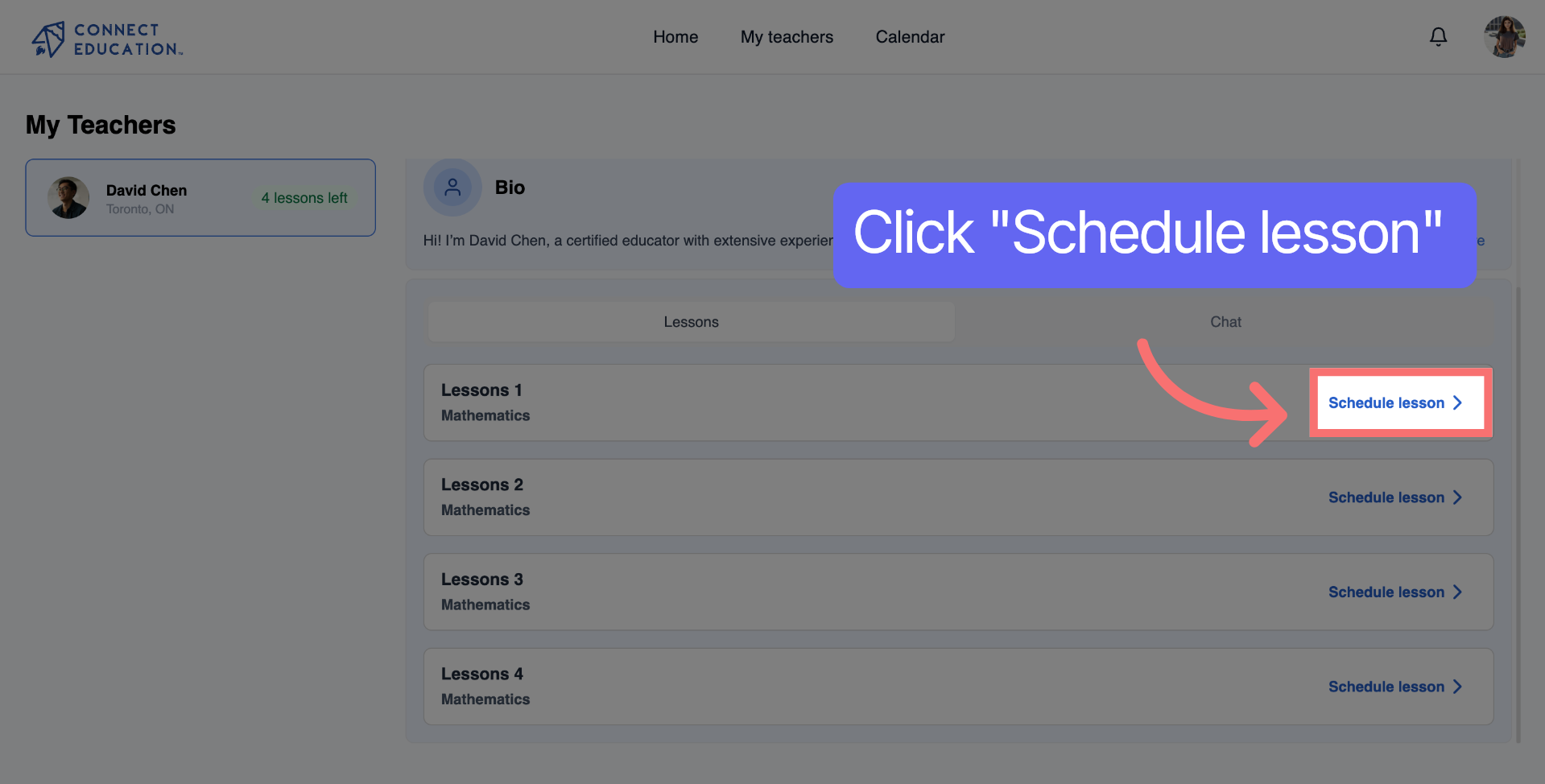
To set up a new lesson, please click on "Schedule Lesson."
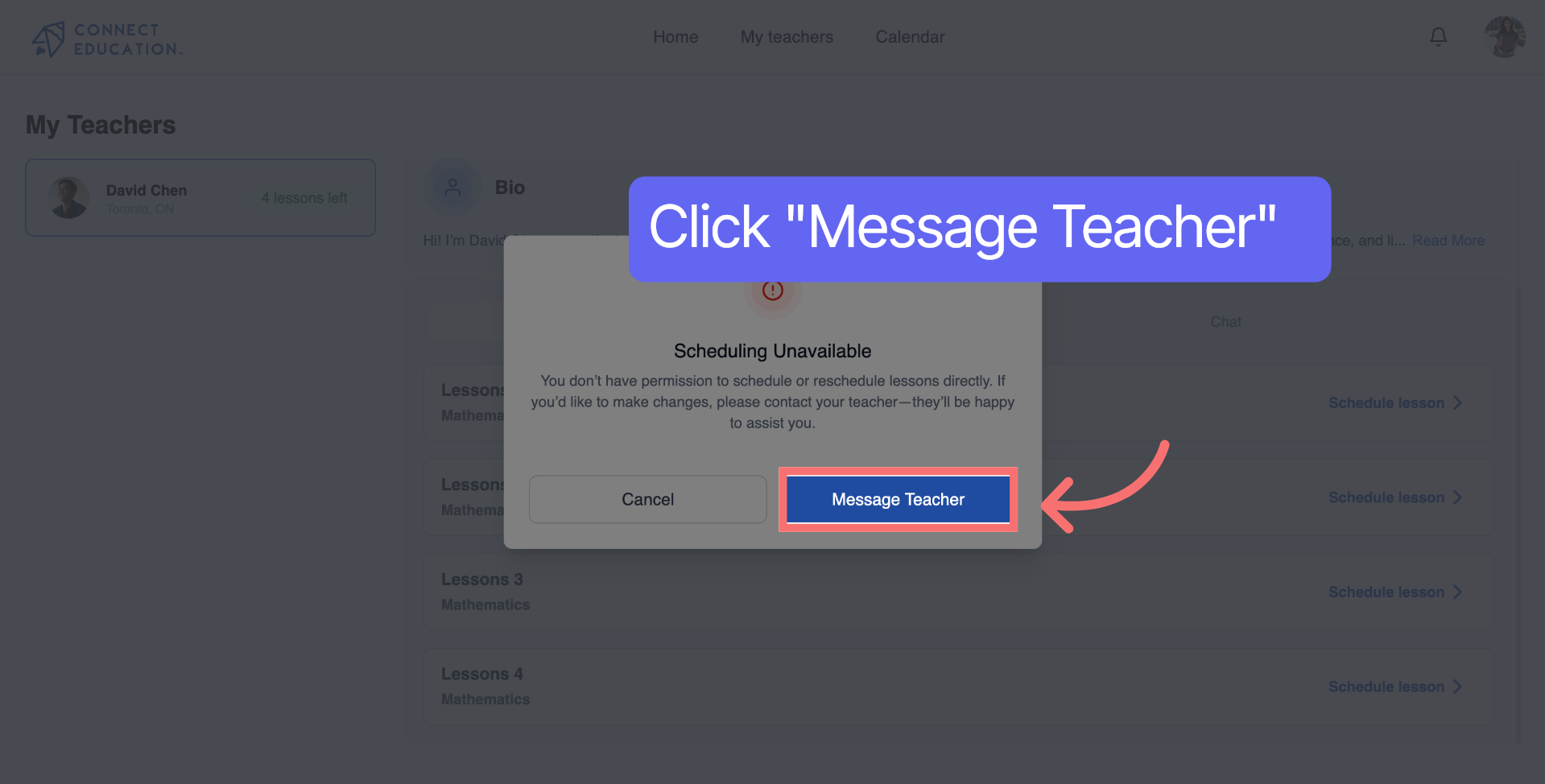
Click Message Teacher to send a message directly to the student's teacher.
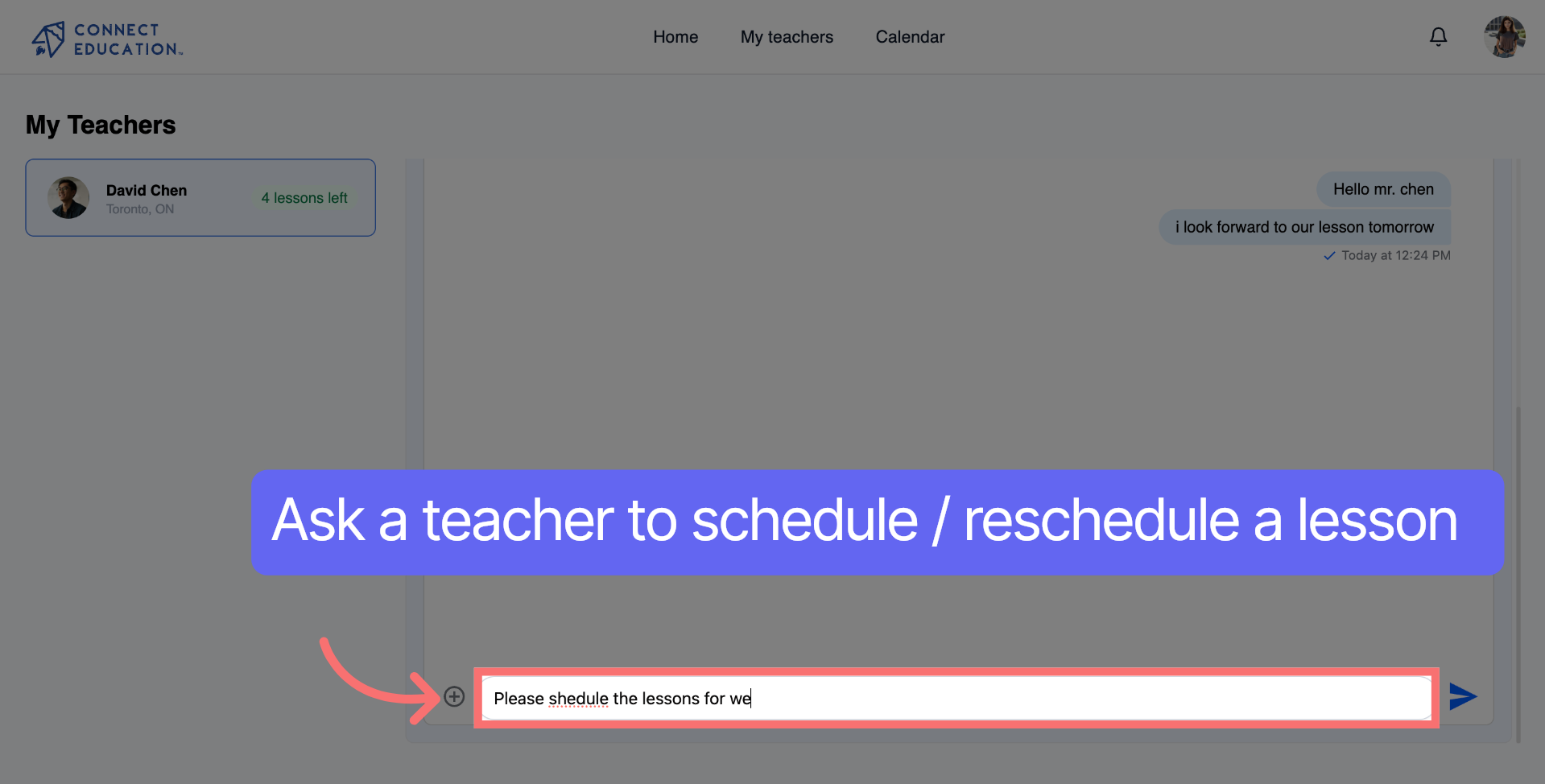
Enter a message requesting the teacher to schedule lessons on your behalf.
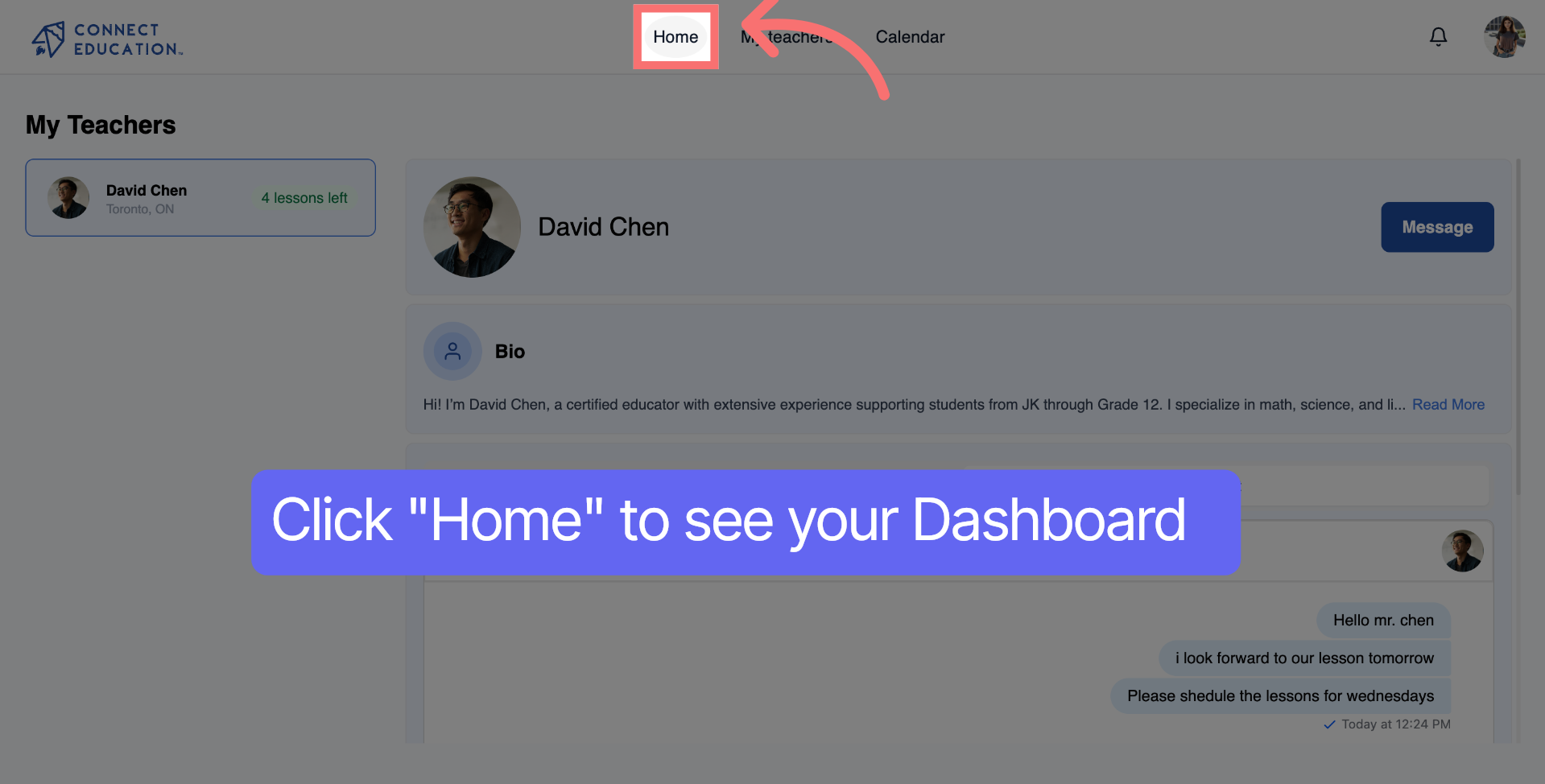
Click Home to return to the main dashboard after completing all steps.



Questions about matching, scheduling or pricing? Reach us whichever way suits you, and our team will take it from there.


