

Connect Education lets you book lessons directly with your child's tutor, choose the timing that works for your schedule, and set up recurring weekly sessions. Managing your lesson schedule is quick and straightforward from your parent account. Follow these steps to schedule a lesson.
Step 1: Go to My Teachers
Click the "My Teachers" tab to view all the tutors connected to your account.

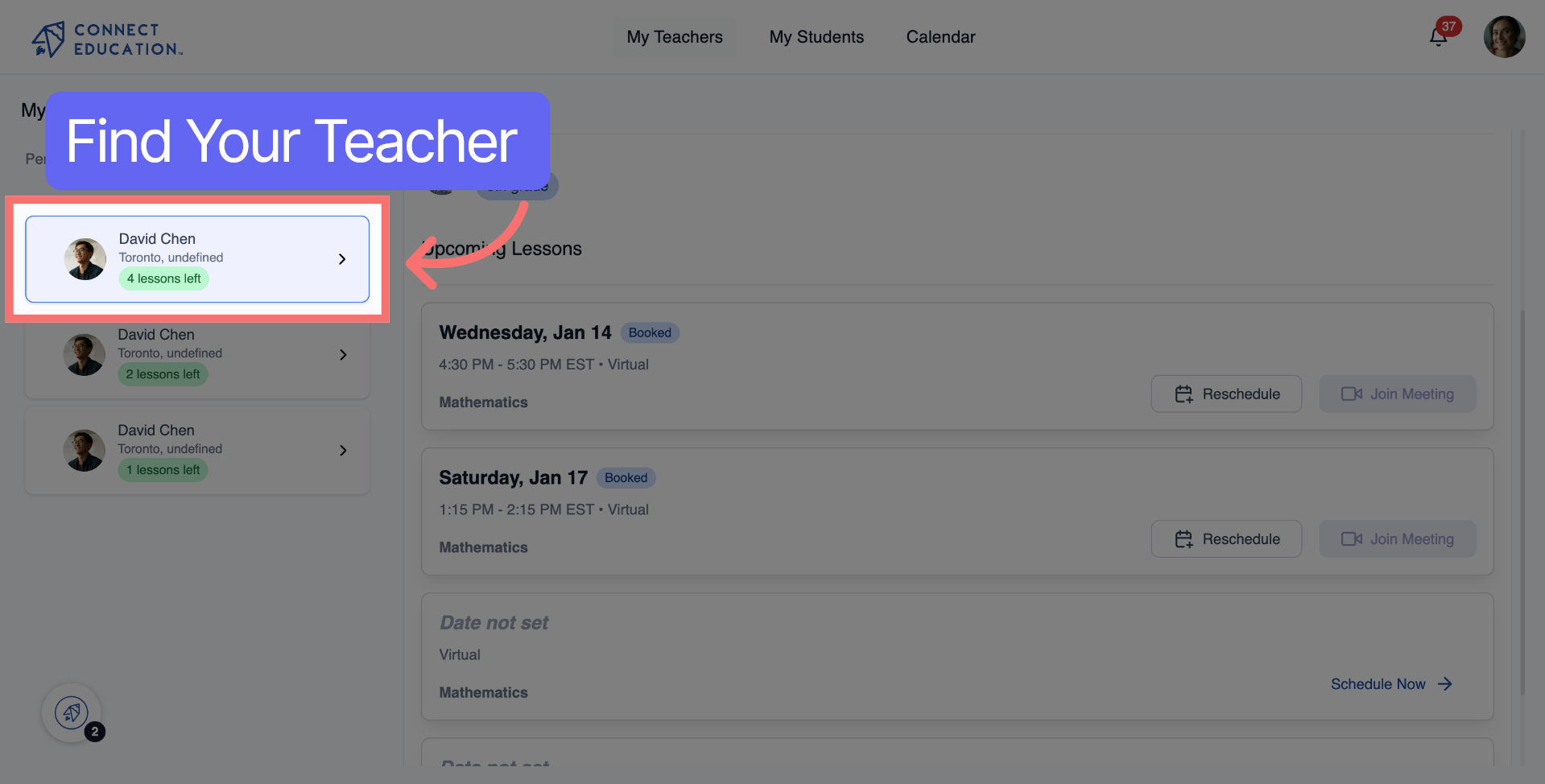
Step 2: Select Your Teacher
Click the teacher's name to open their profile and lesson booking details.
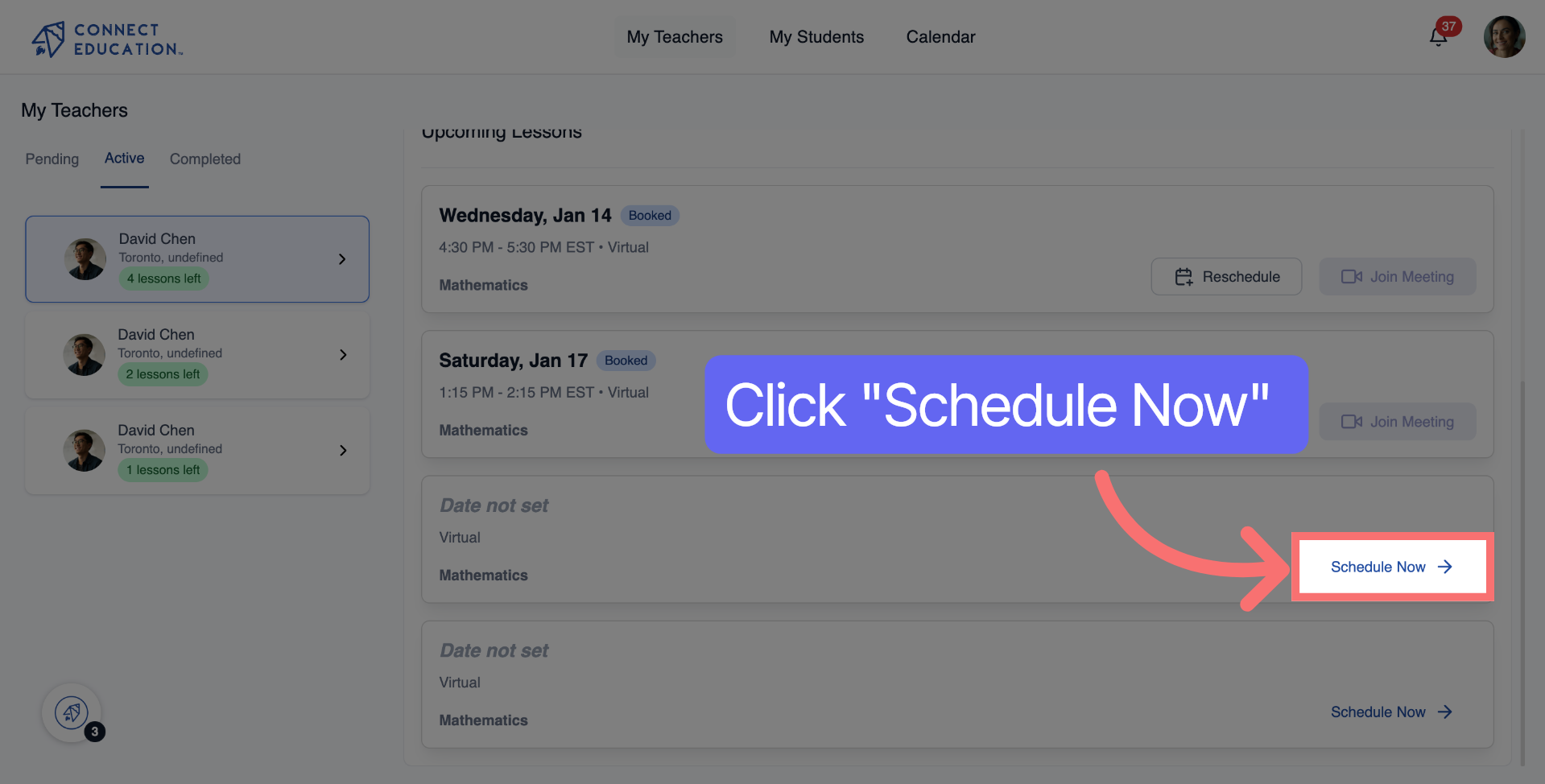
Step 3: Click Schedule Now
Click "Schedule Now" to begin booking a lesson with the selected teacher.
Step 4: Choose a Date
Click the date on the calendar for when you want the lesson to take place.

Step 5: Select a Time Slot
Click your preferred time slot to set the lesson time.
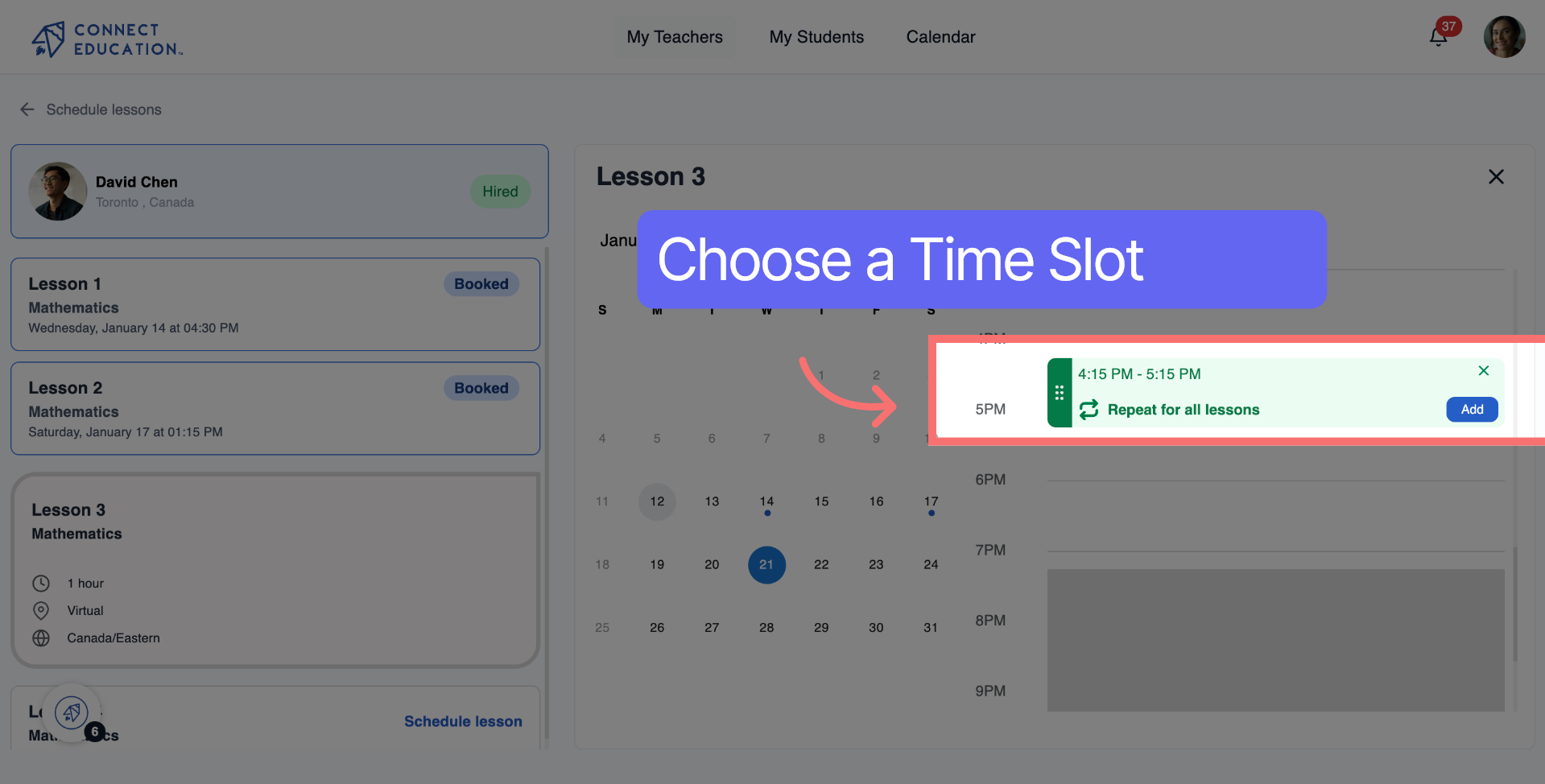
Step 6: Set Recurring Options
Click "Repeat for all lessons" to set how often the lesson should repeat.

Step 7: Choose Weekly Recurrence
Click "Every week" to schedule the lesson to repeat on a weekly basis.

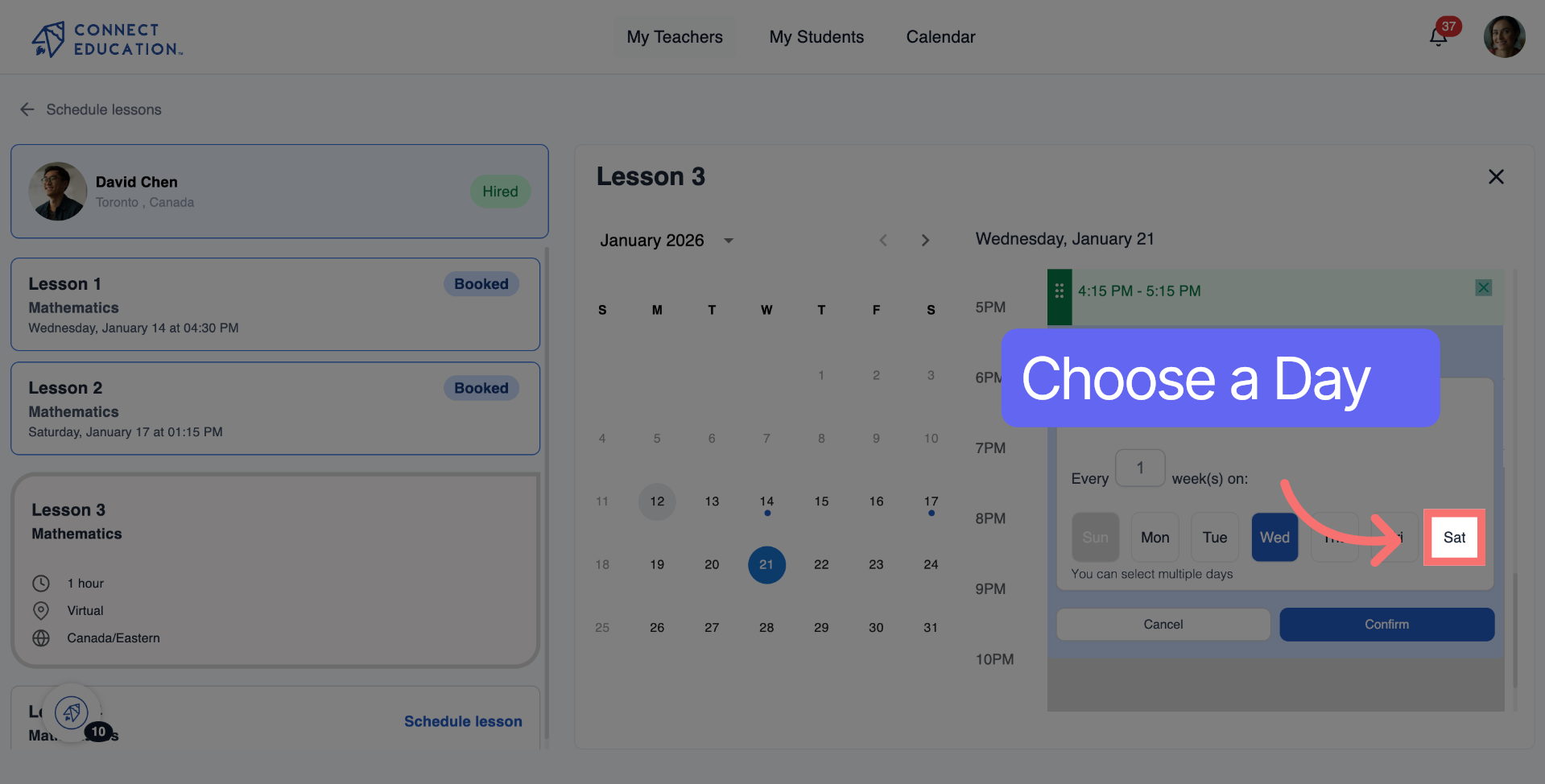
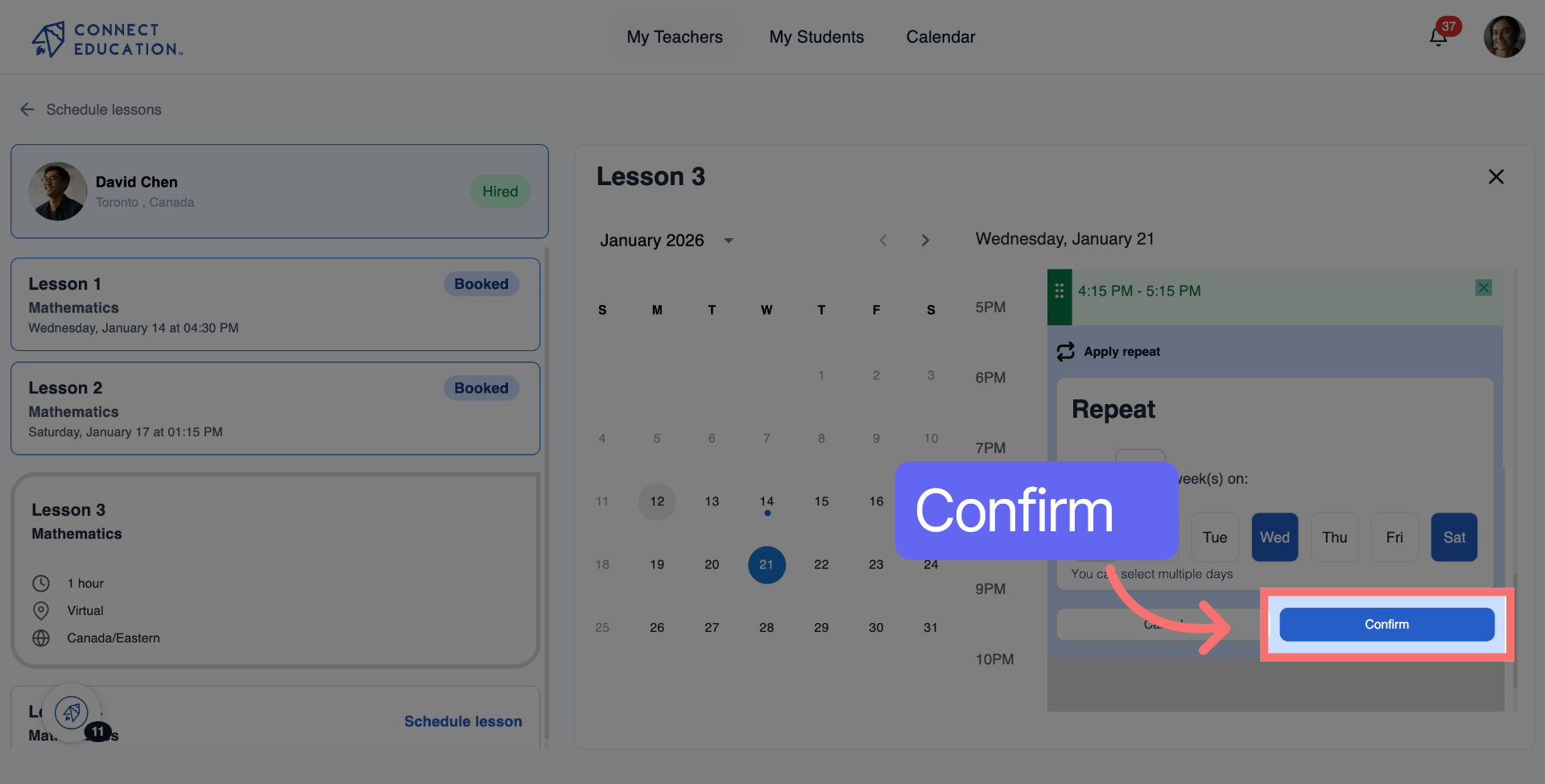
Step 8: Select the Day
Click the day of the week when recurring lessons will take place.
Step 9: Confirm the Booking
Click "Confirm" to finalize your lesson date, time, and repetition settings.
💡Tips
- You can set up recurring weekly lessons during the booking process to save time each week.
- If you need to reschedule, go to your upcoming lessons and select the reschedule option before the lesson starts.
- Check that the time zone displayed matches your local time before confirming a booking.
- Your teacher will receive a notification as soon as you confirm the lesson.
- To cancel a single session without affecting recurring bookings, use the one-time cancel option.