How to Add a Location or Meeting Link in Your Schedule

Ensure students and parents have all the info they need to attend lessons, whether online or in-person.

Keep Lessons Clear and Convenient

Need to update your student’s schedule with a Zoom link or address? This guide walks you through adding or editing a meeting link (for virtual lessons) or a location (for in-person sessions) directly from your teacher dashboard. Ensuring this info is current helps prevent confusion and ensures smooth communication with families.

Step 1: Log In as a Teacher

Sign in to your teacher account.

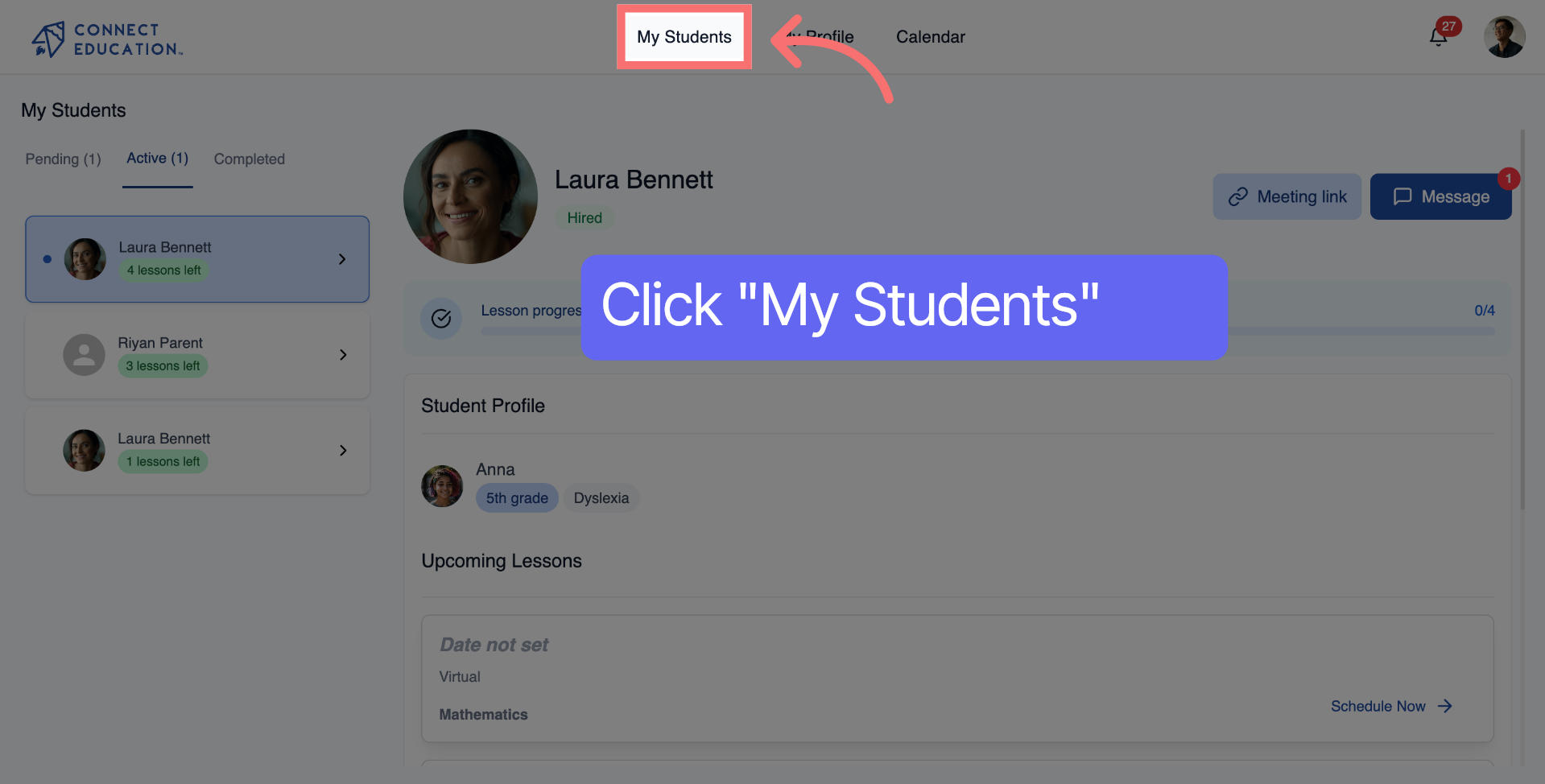
Step 2: Navigate to My Students

Click "My Students" to access your list of students.
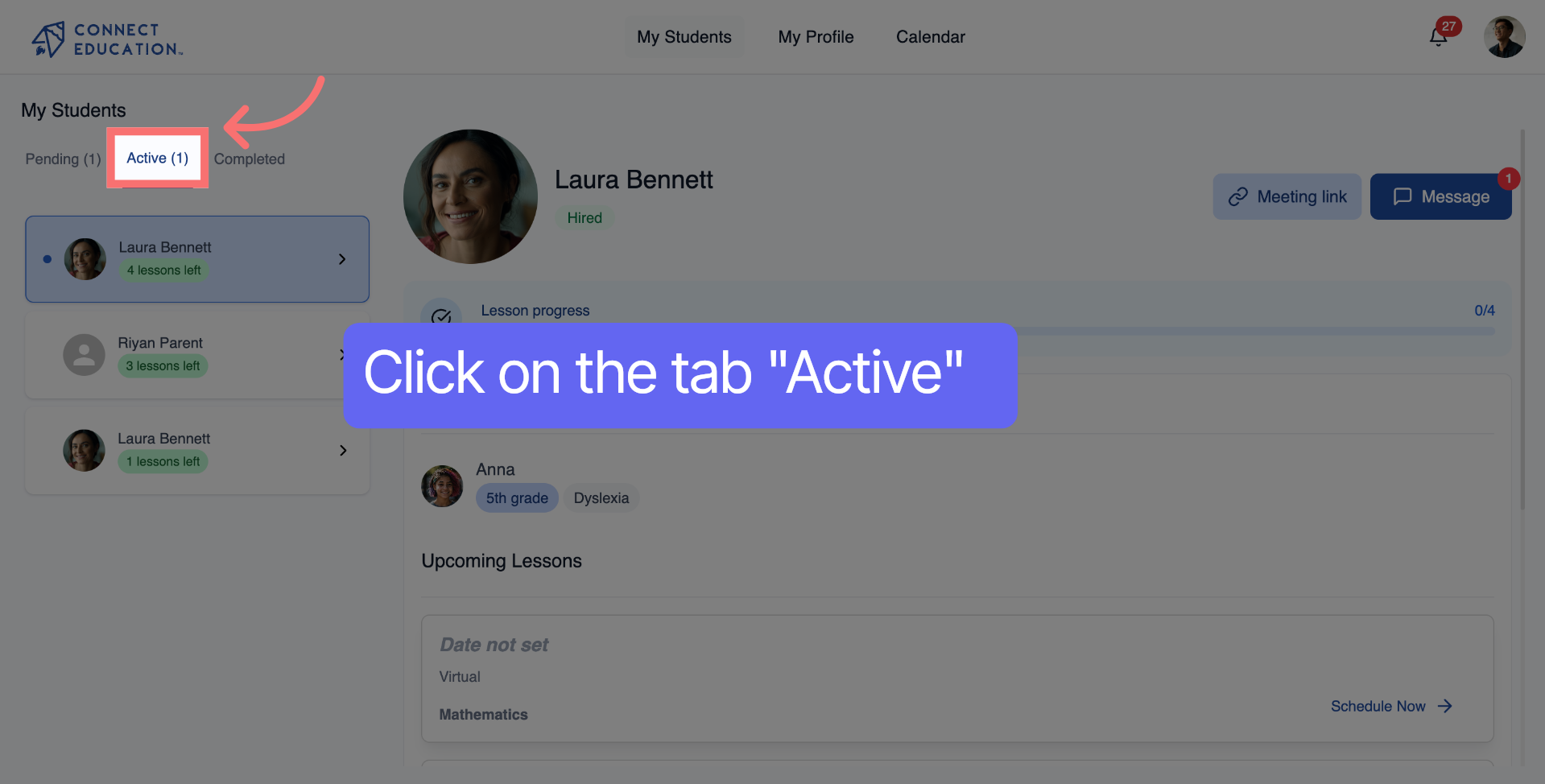
Step 3: Open Active Students List

Click on the "Active" tab to see the list of currently enrolled students.
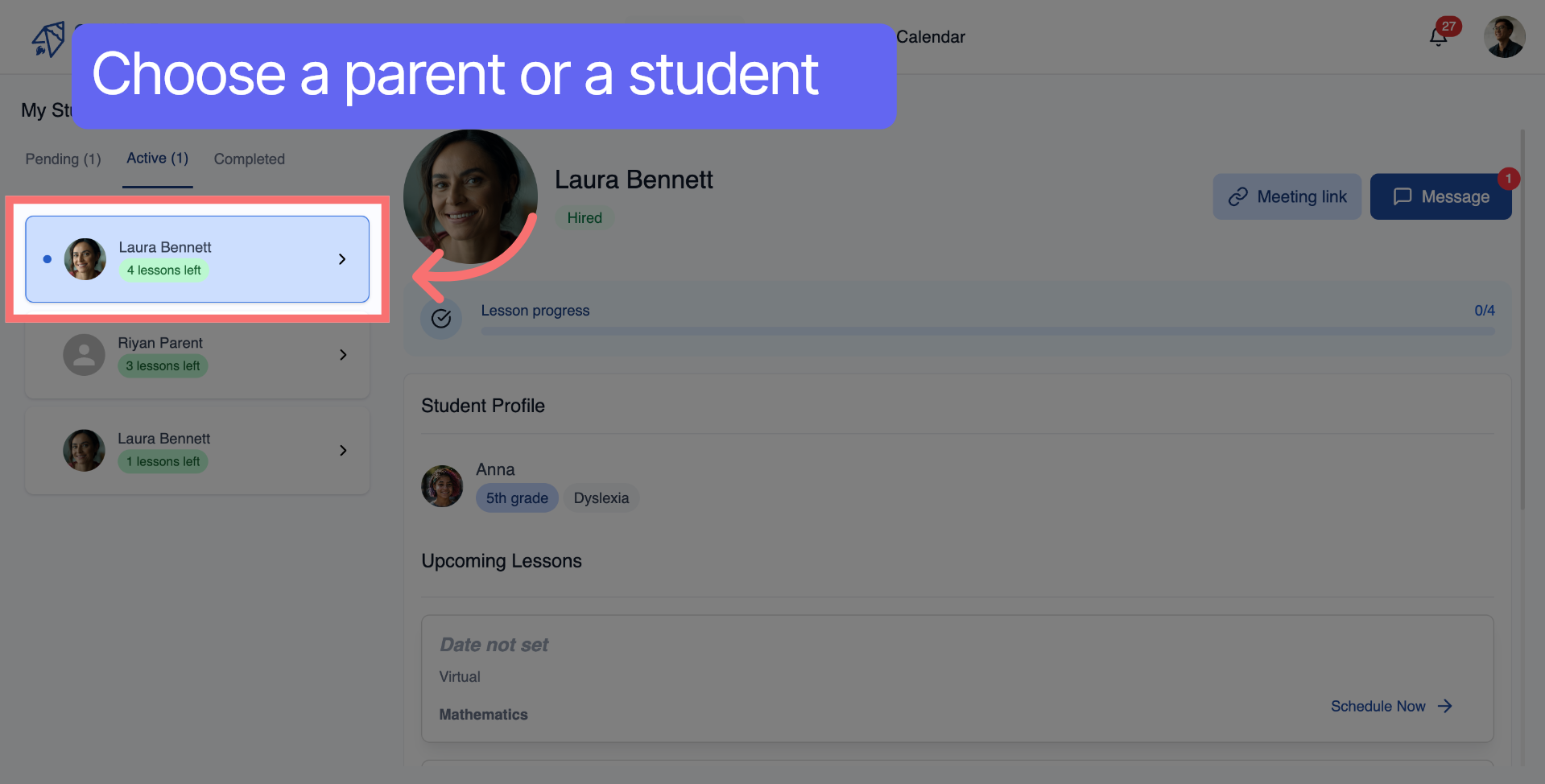
Step 4: Select Student Profile

Select either a parent or a student to view the student's details.
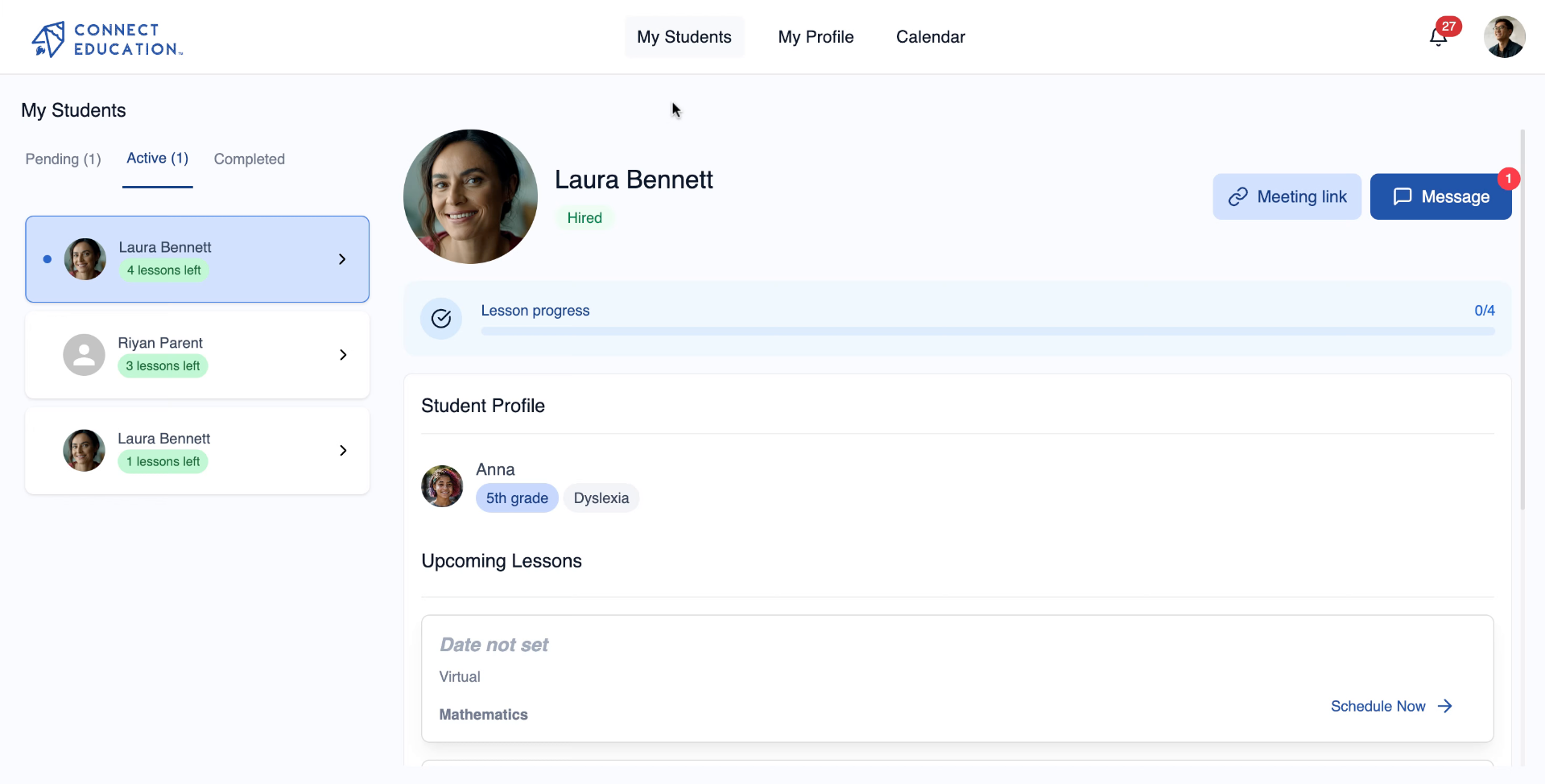
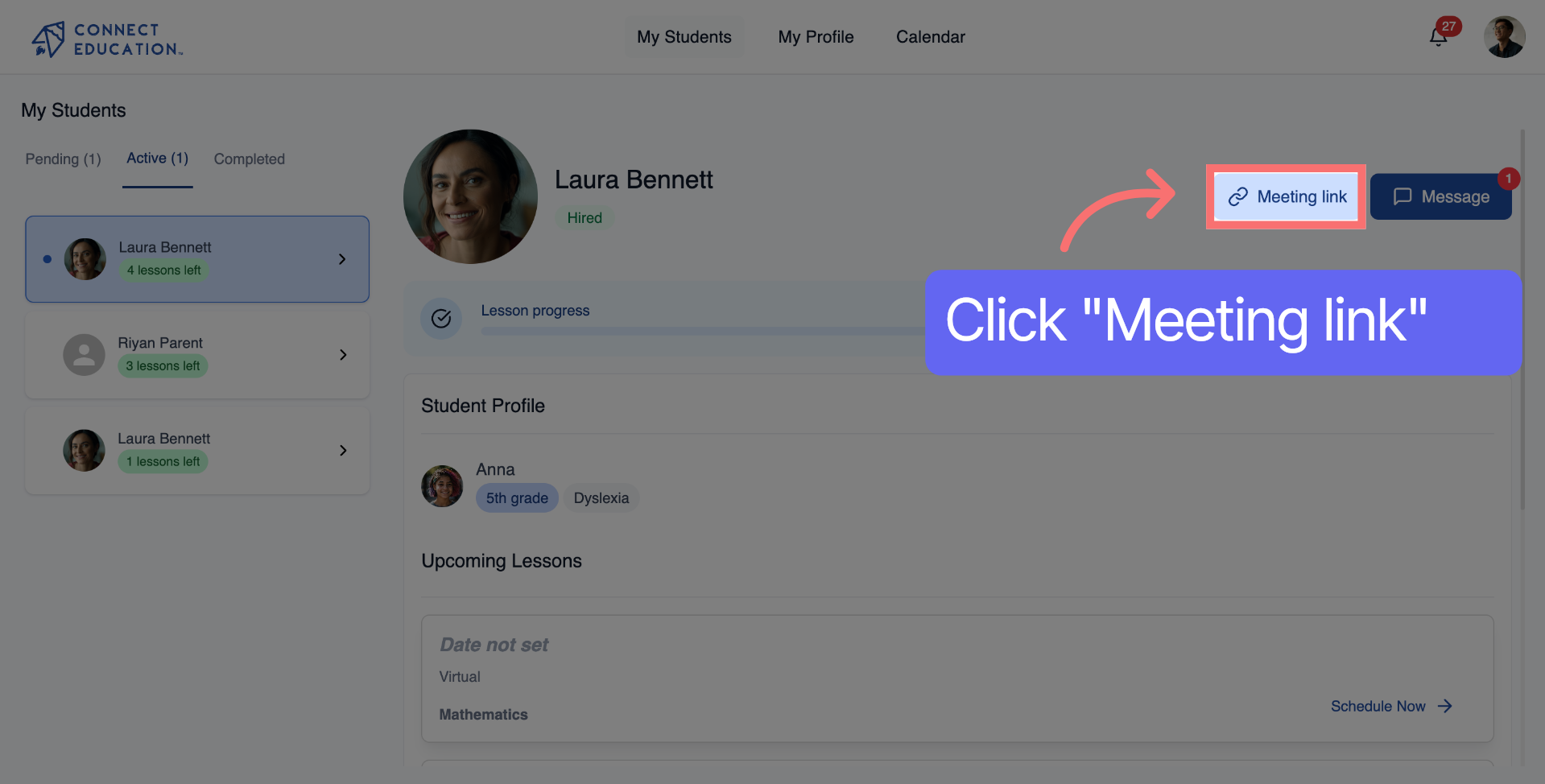
Step 5: Access Meeting Link Section

If you have a virtual lesson, click "Meeting link" to add a meeting URL.
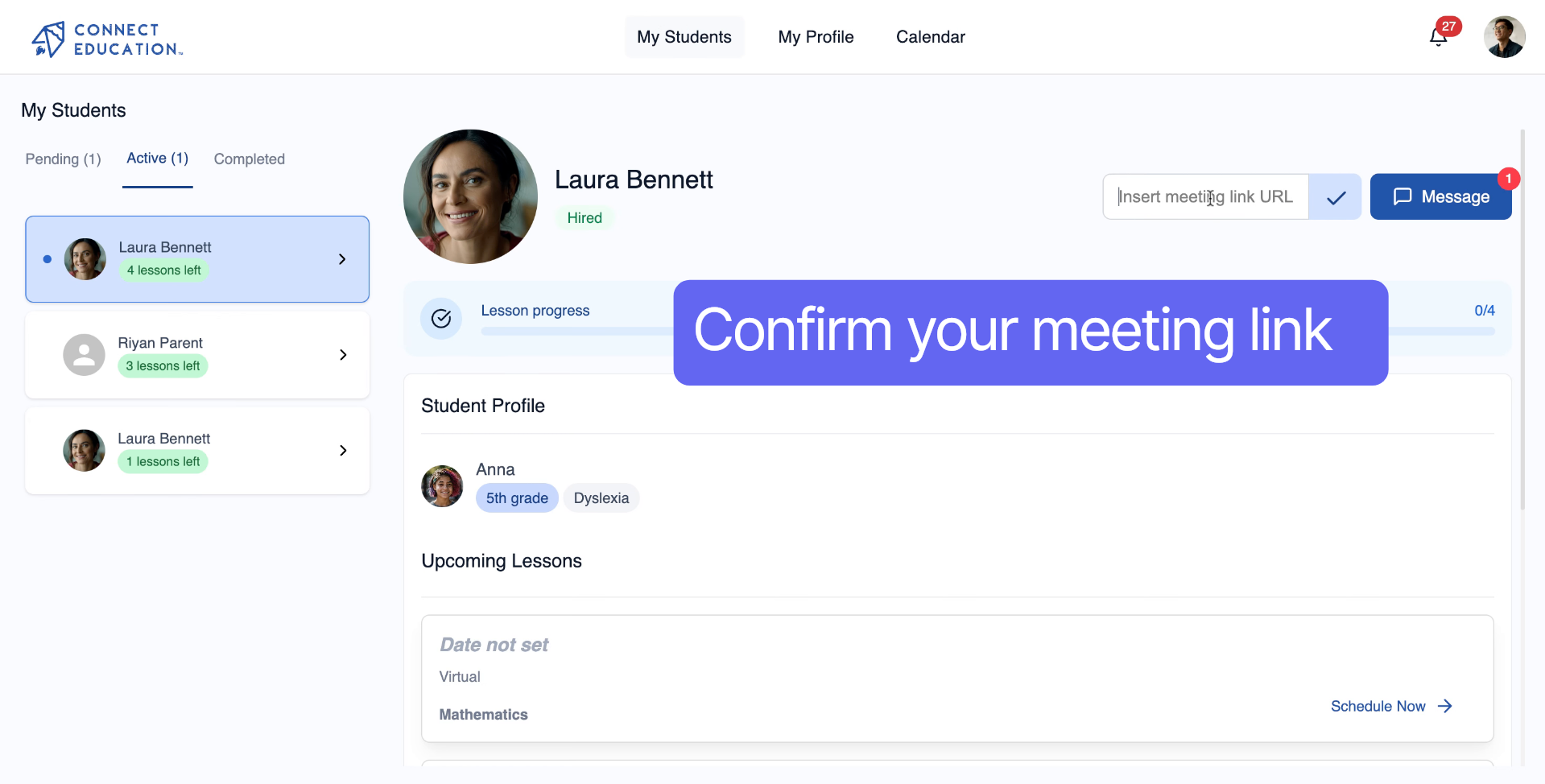
Step 6: Open Meeting Link Input

Click "Insert meeting link URL" to activate the input field.
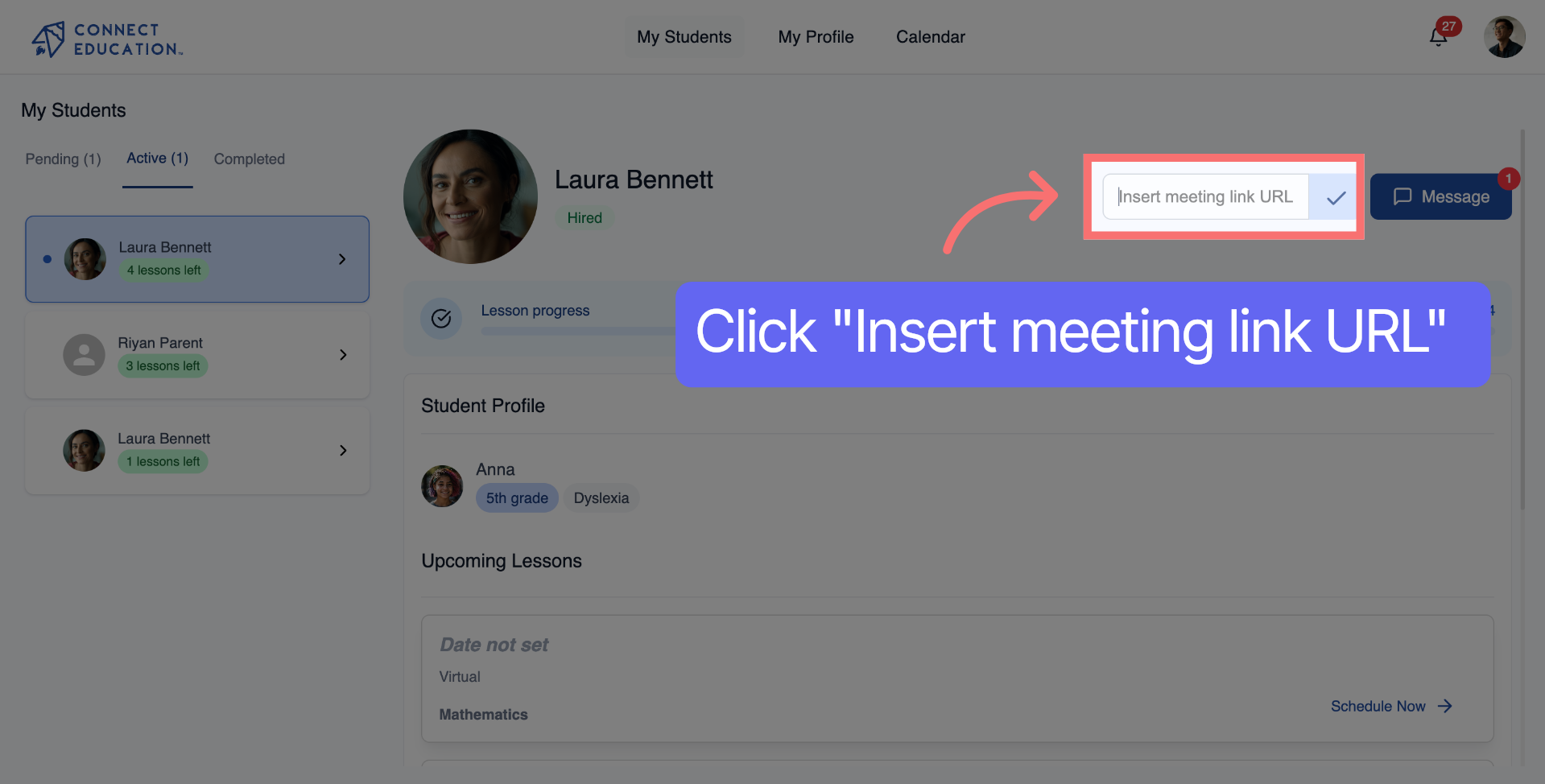
Step 7: Enter Meeting Link URL

Confirm your meeting link.

Step 8: Open Location Update Section

If you have an in-person lesson, click "Update location" to add or change the student's meeting location.
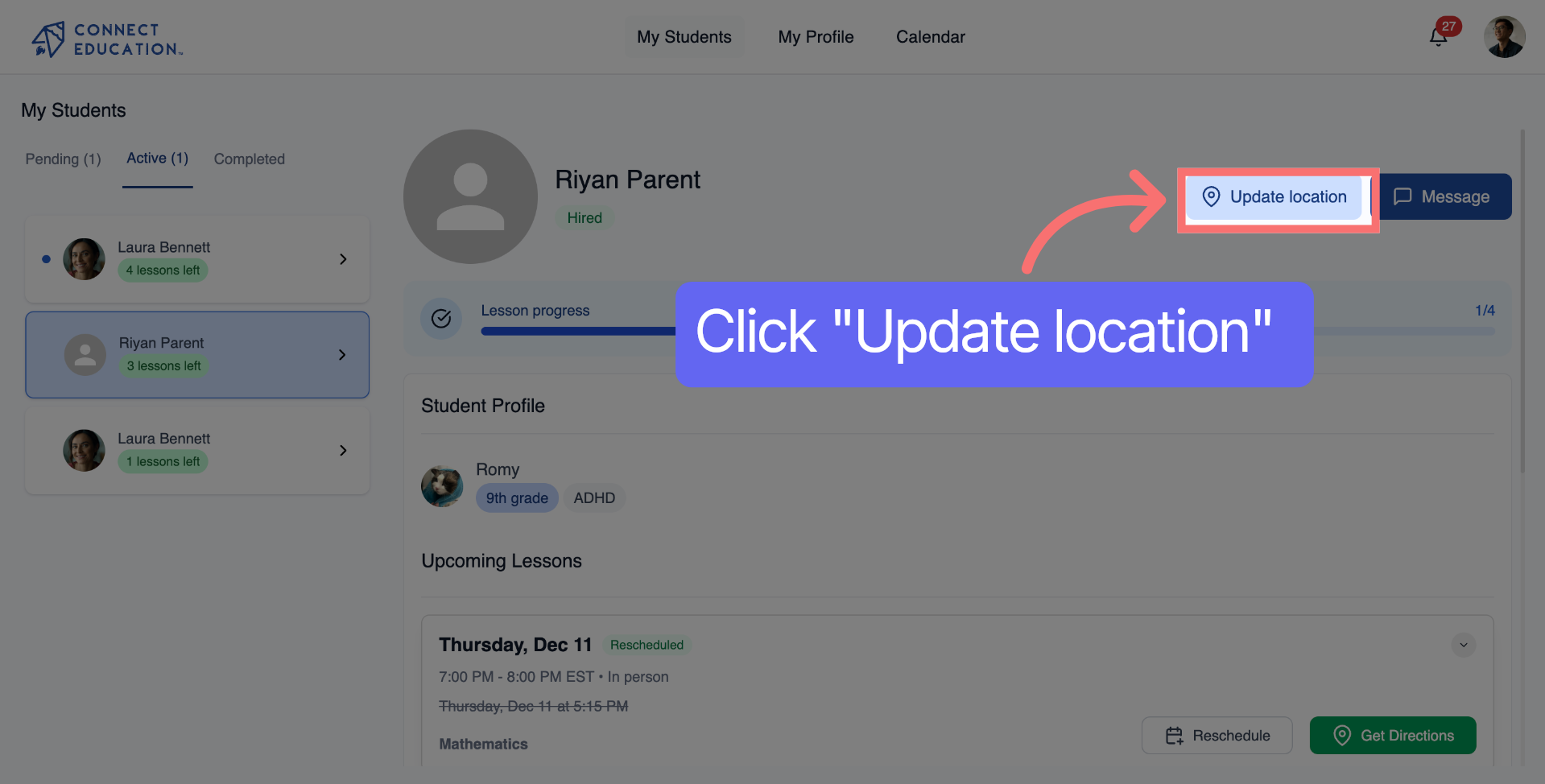
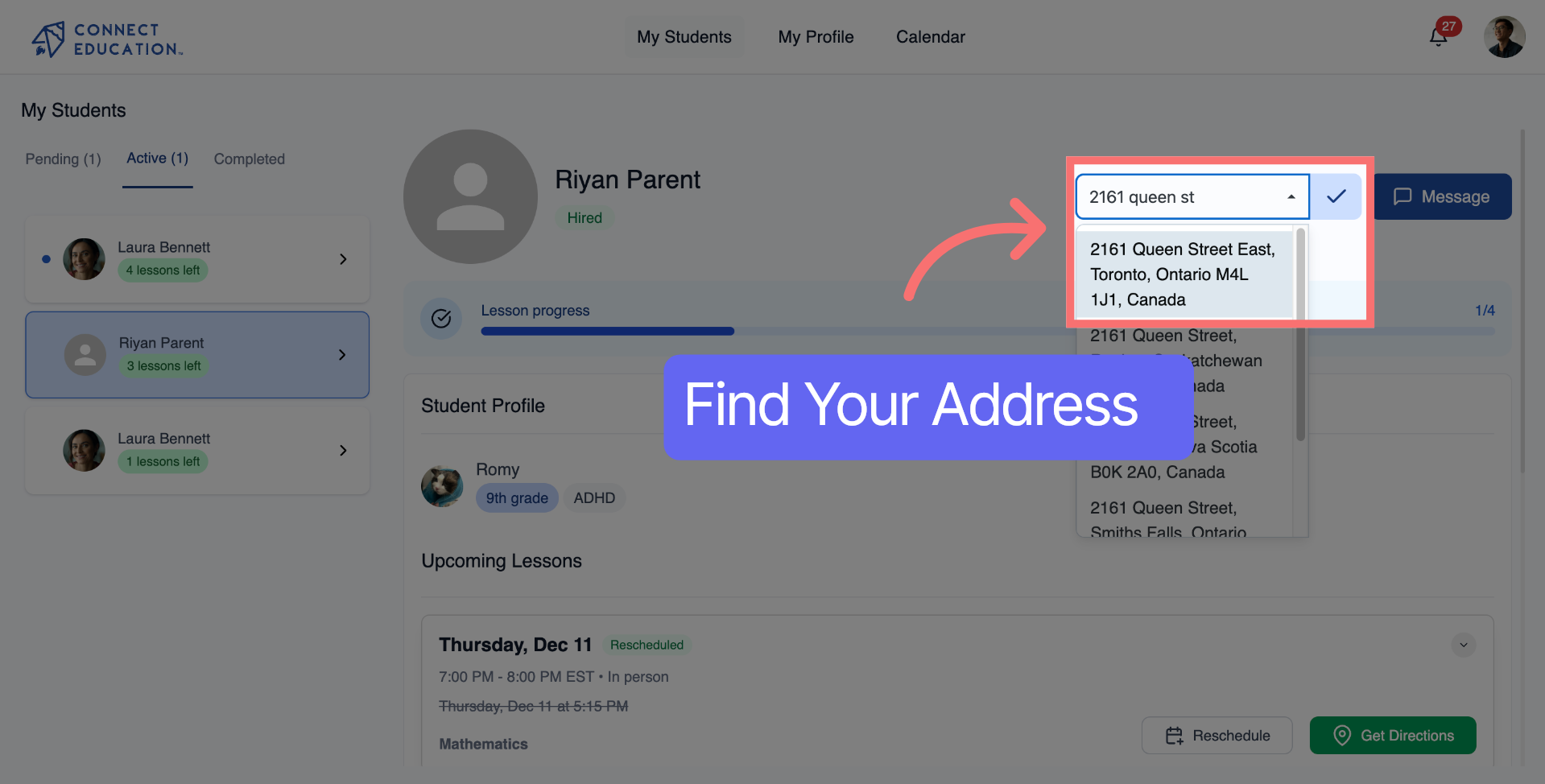
Step 9: Activate Address Input Field

Click "Type address here...." to start entering the location address.
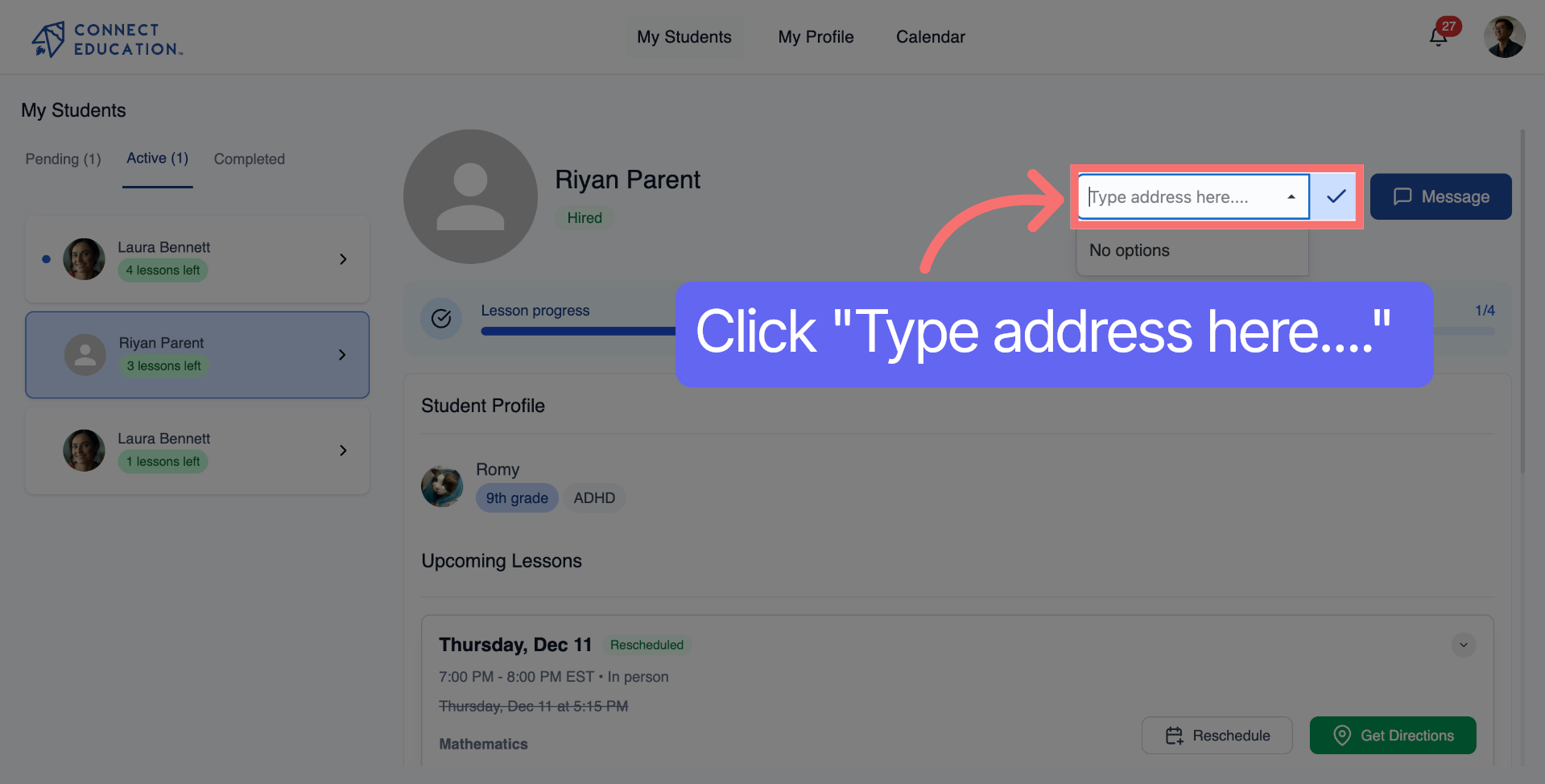
Step 10: Select Address Suggestion

Find your address.

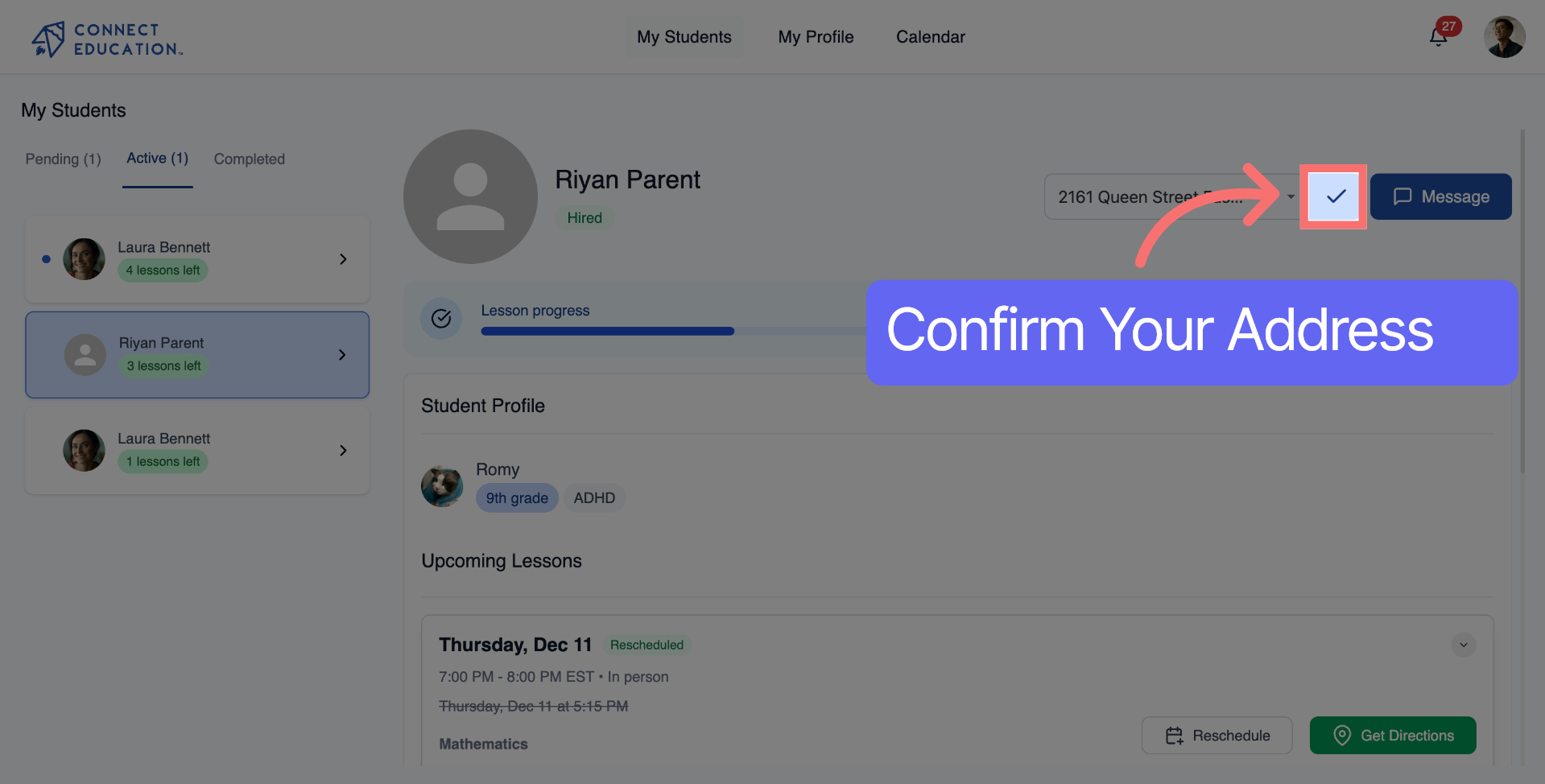
Step 11: Confirm Location Entry

Confirm your location address

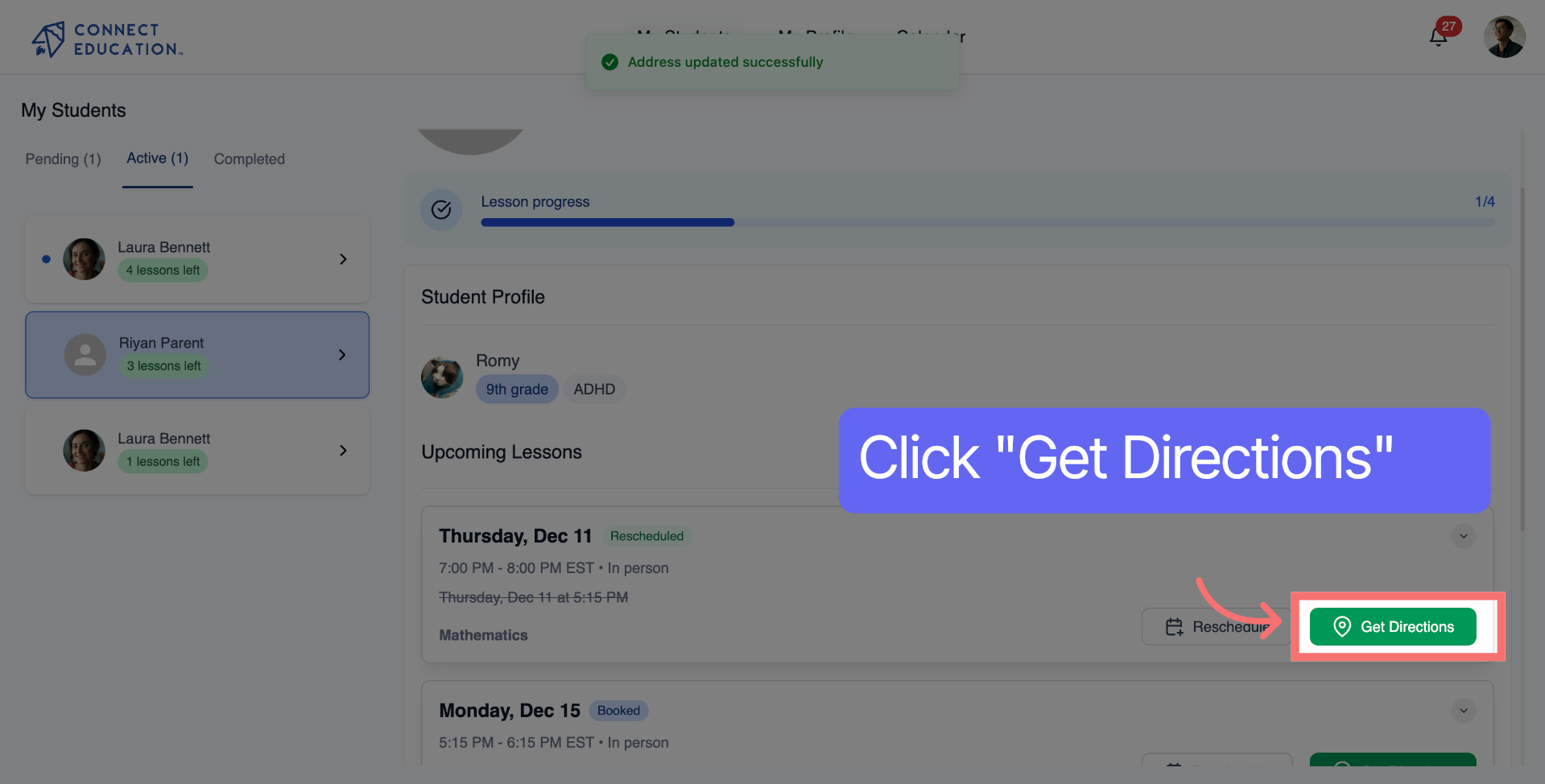
Step 12: Get Directions to Location

Go to student lessons and click "Get Directions" to verify that you have set the correct location. Now, parents and students will see directions for their scheduled lessons.
Log In as a Teacher

💡 Tips & Troubleshooting

  • Meeting link not saving?
    Ensure the link starts with “https://” and try pasting it again before saving.
  • Address suggestions not showing?
    Try typing a nearby landmark or full street name to trigger autocomplete.
  • Wrong location saved?
    Click Update location again and select the correct suggestion before confirming.

Additional Resources for Your Success