
How to Accept Parent Requests and Share Your Booking Link

Support families right from the start by responding to new requests and guiding them to book sessions confidently.

From Request to Booking: A Quick Start for New Connections

This step-by-step guide shows how to respond to new parent requests and send a booking link so families can complete hiring.

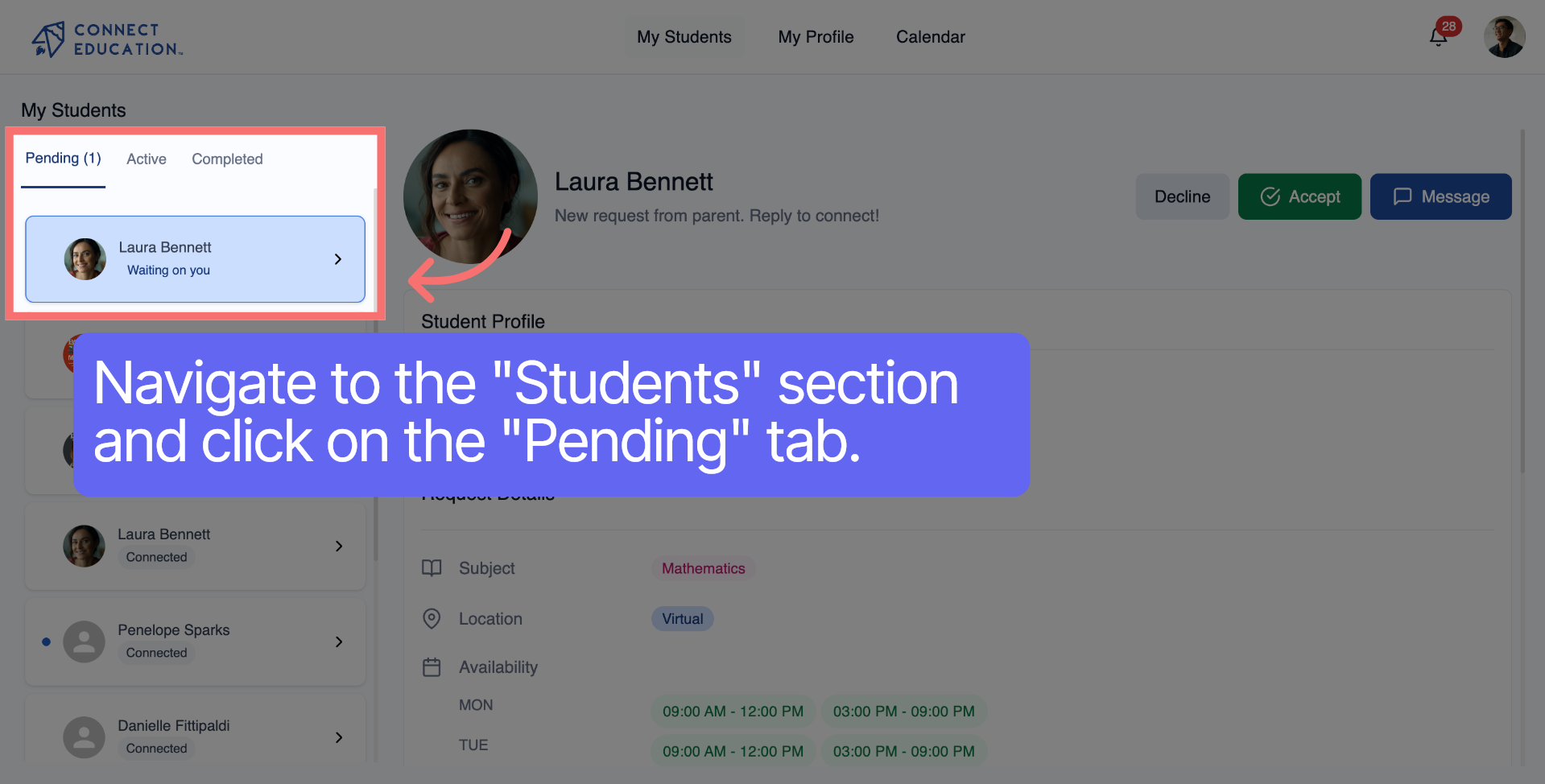
Step 1: Open Request Notification

Navigate to "My Students," click on the "Pending" tab, and look for a parent request.
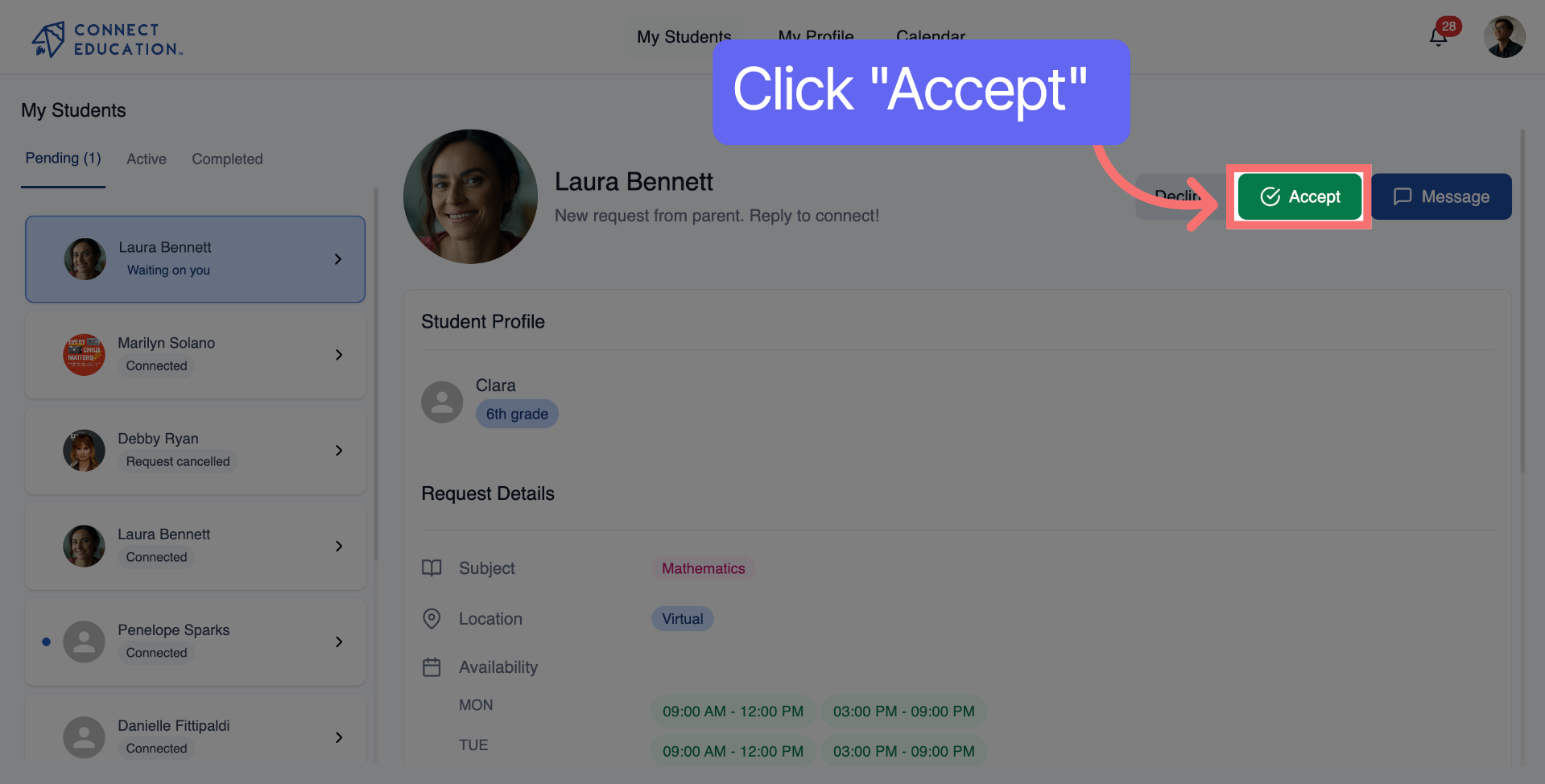
Step 2: Accept The Request

Click the "Accept" button to approve the request and proceed with the hiring process.
Step 3: Open Message Interface

Click the "Message" button to start composing a message to the requester.

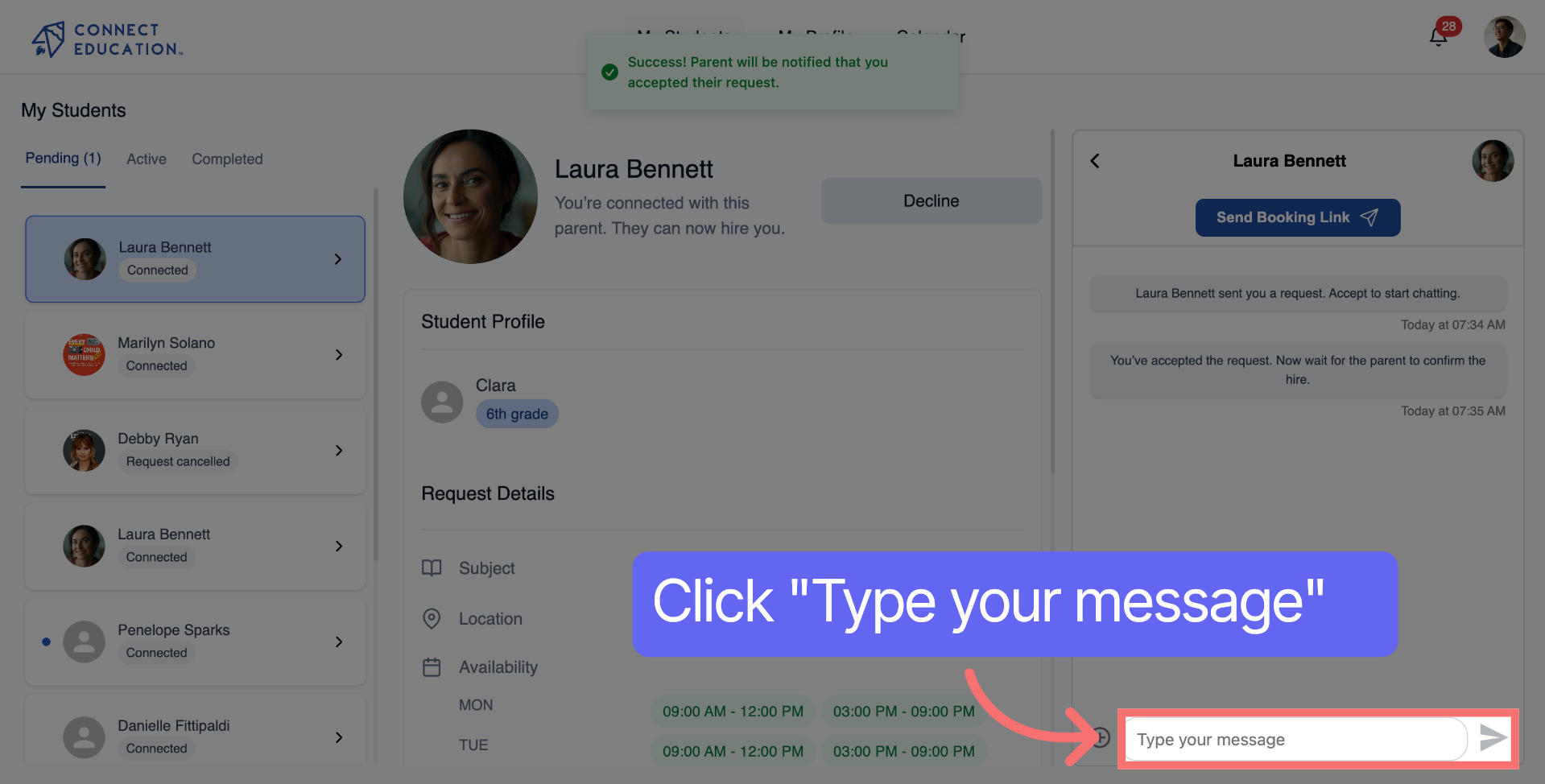
Step 4: Chat with a Parent

To start typing your message, click on the area labeled "Type your message" to activate the text input field.
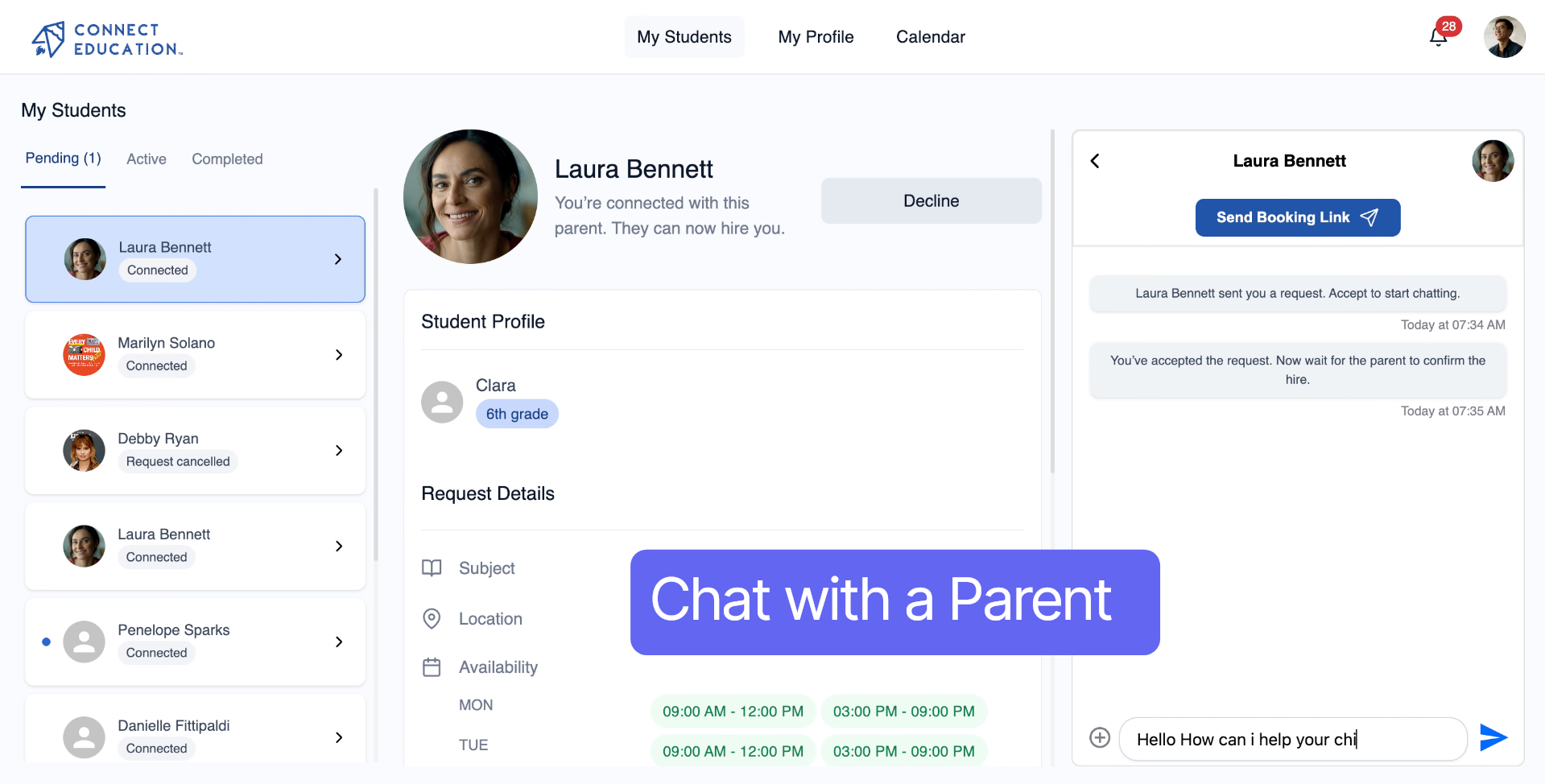
Step 5: Discuss Details

Engage in a conversation with a parent to discuss their request, the needs of their child, and establish a schedule.
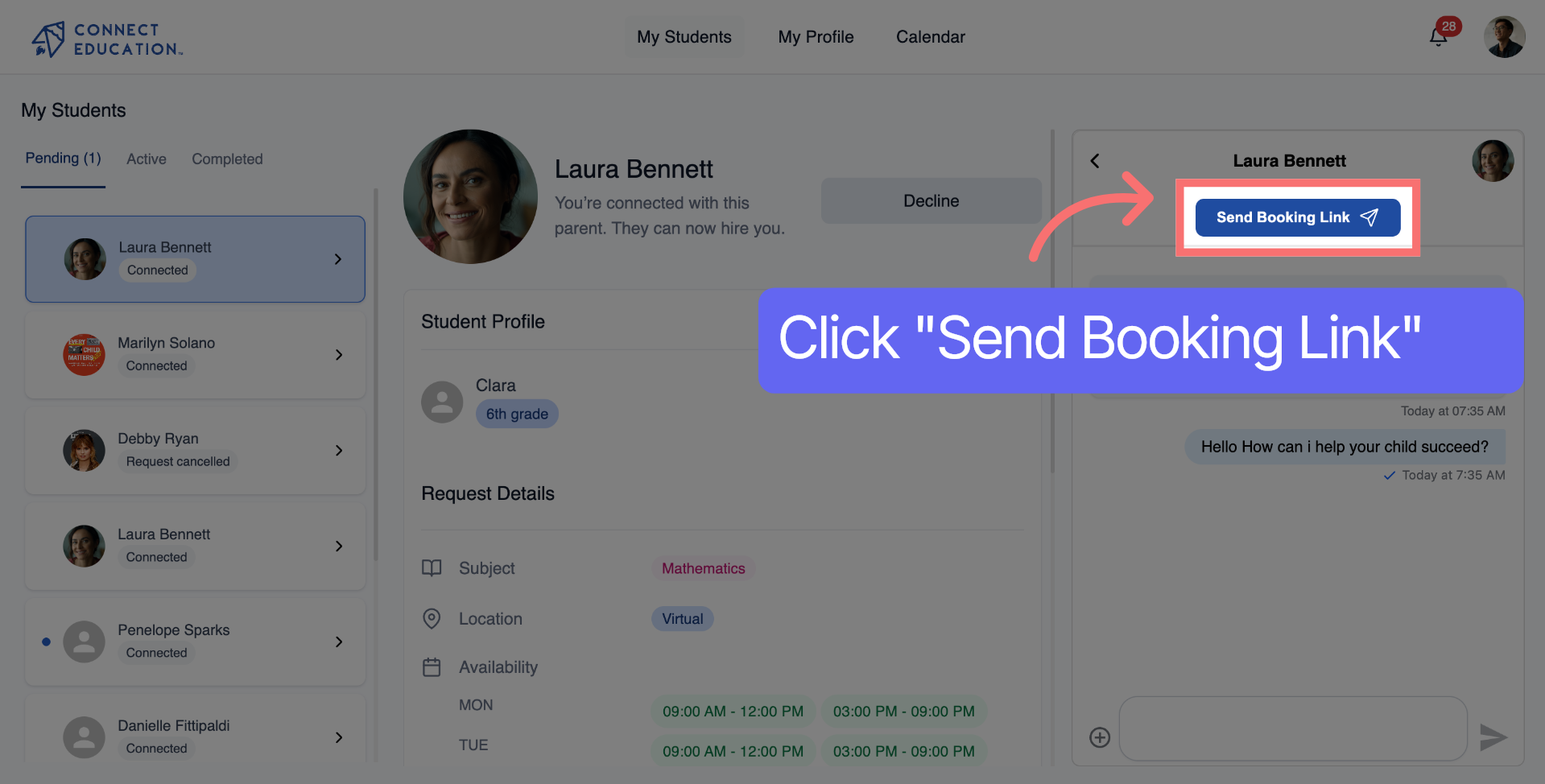
Step 6: Send Booking Link

Click the "Send Booking Link" button to prepare the hire link for sending.
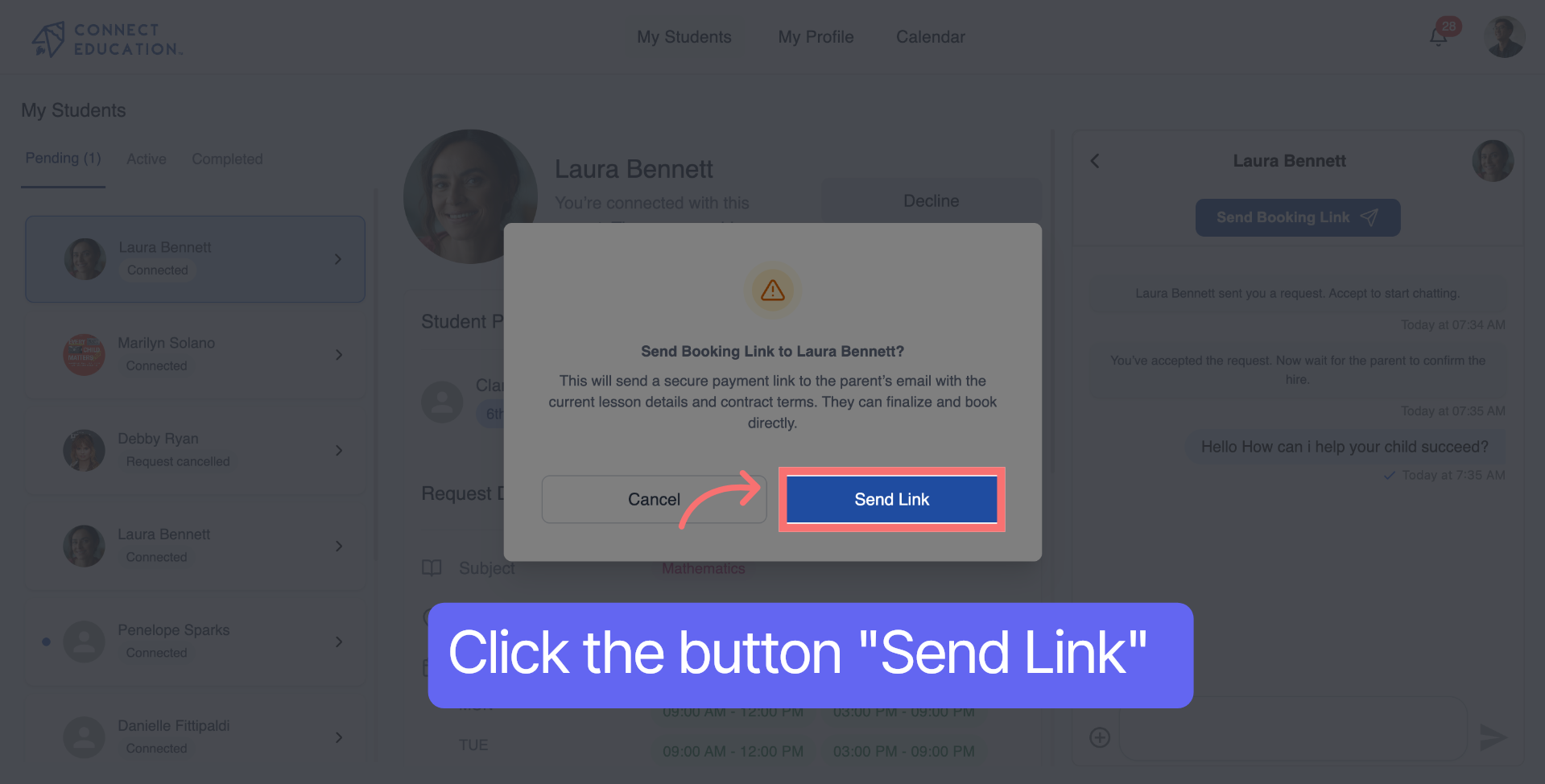
Step 7: Confirm And Send Link

Click the "Send Link" button to send the hire link to the requester. The parent will receive an email and SMS notification with the link to make the payment for the contract.
Log In as a Teacher

💡Tips & Troubleshooting

  • Didn’t get a request notification?
    Refresh your browser and check the “Pending” tab under My Students.
  • Can't find the “Send Booking Link” button?
    Make sure the parent request has been accepted first. The button appears after acceptance.
  • Message not sending?
    Double-check your internet connection and try reloading the page. If the issue persists, log out and back in.
  • Parent didn’t receive the link?
    Ask them to check their email and SMS inbox. Still missing? Resend the link using the same steps.
  • Booking link already sent?
    You can check message history in the chat window to confirm whether the link went through.

Additional Resources for Your Success