
Tutoring Services Across Canada

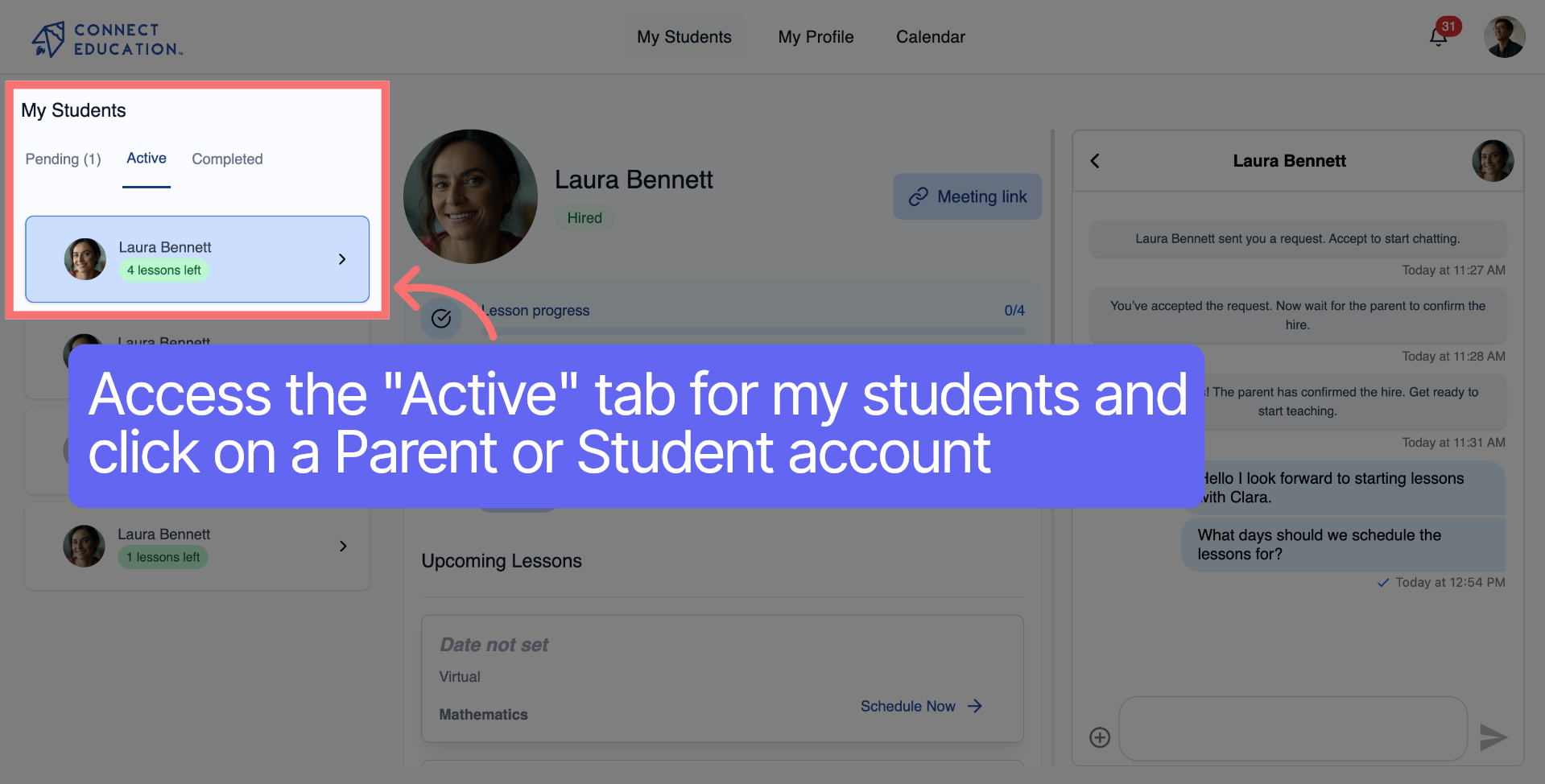
Log in to the Connect Education Platform, access the "Active" tab for my students, and click on a Parent or Student account.
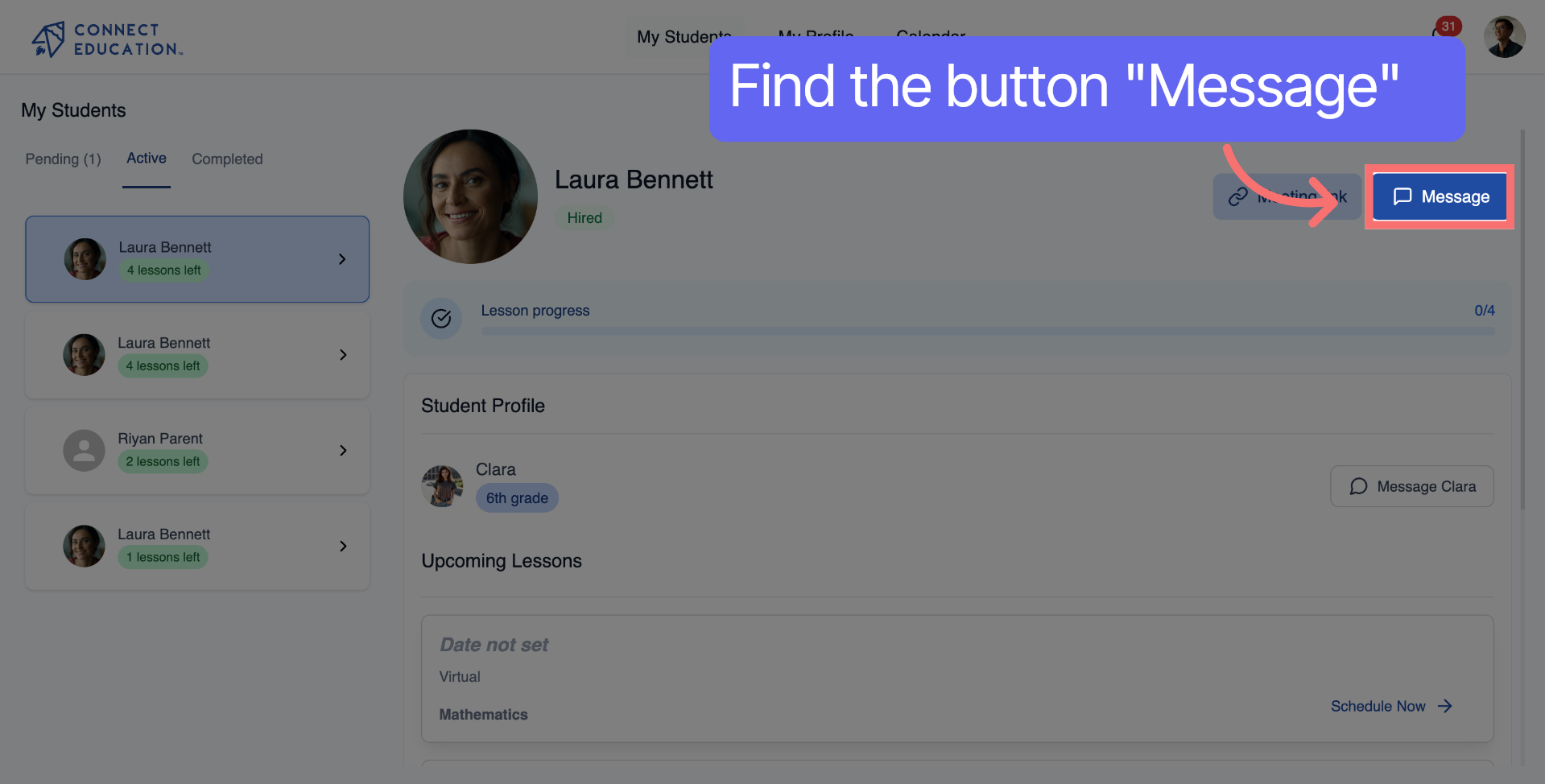
To start a conversation, click the "Message" button to access the messaging interface.
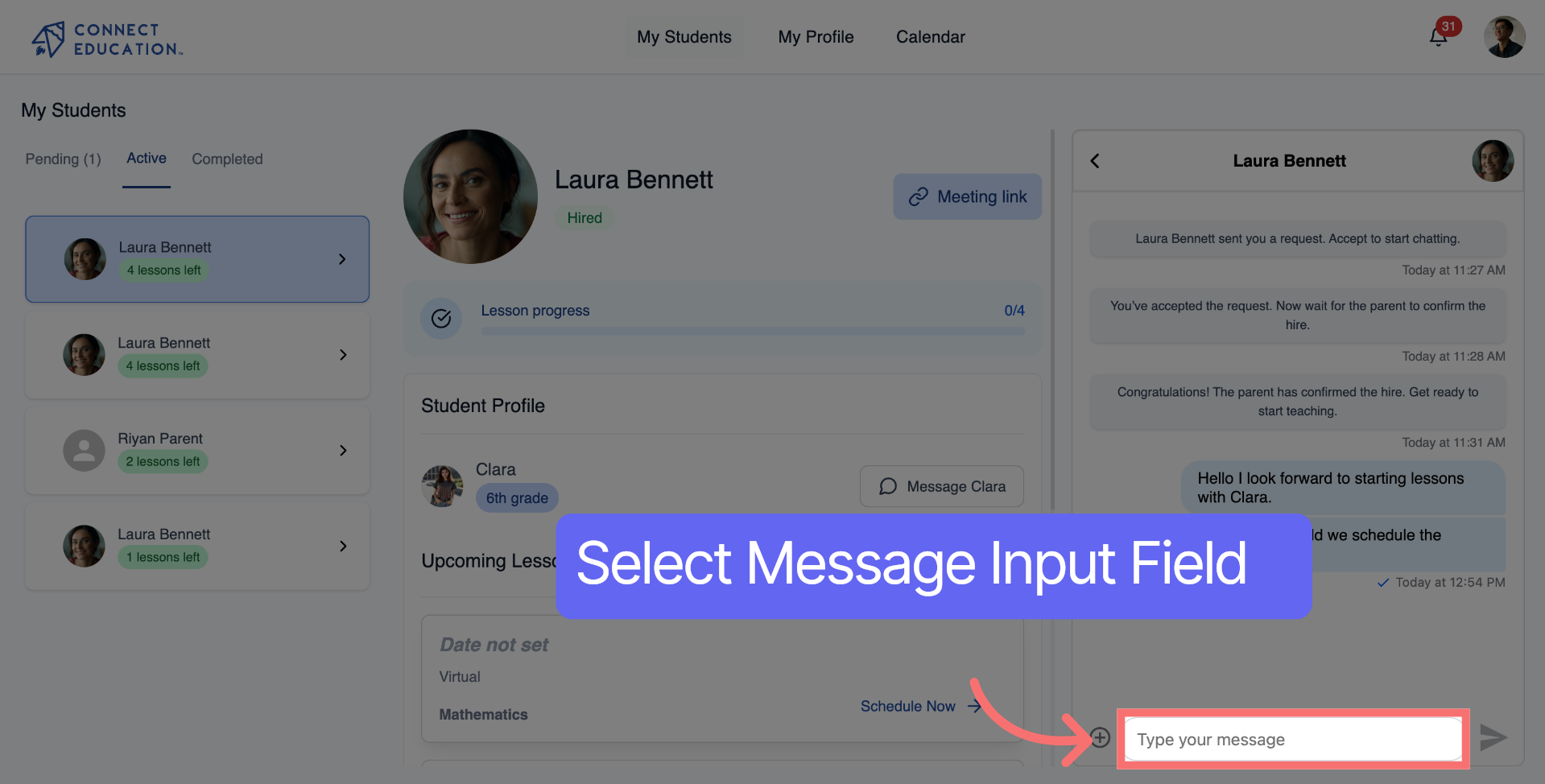
Click "Type your message" to activate the text input area.
Enter your message asking about the learning goals for the class.

Click the plus button to open the document upload option in the chat window.
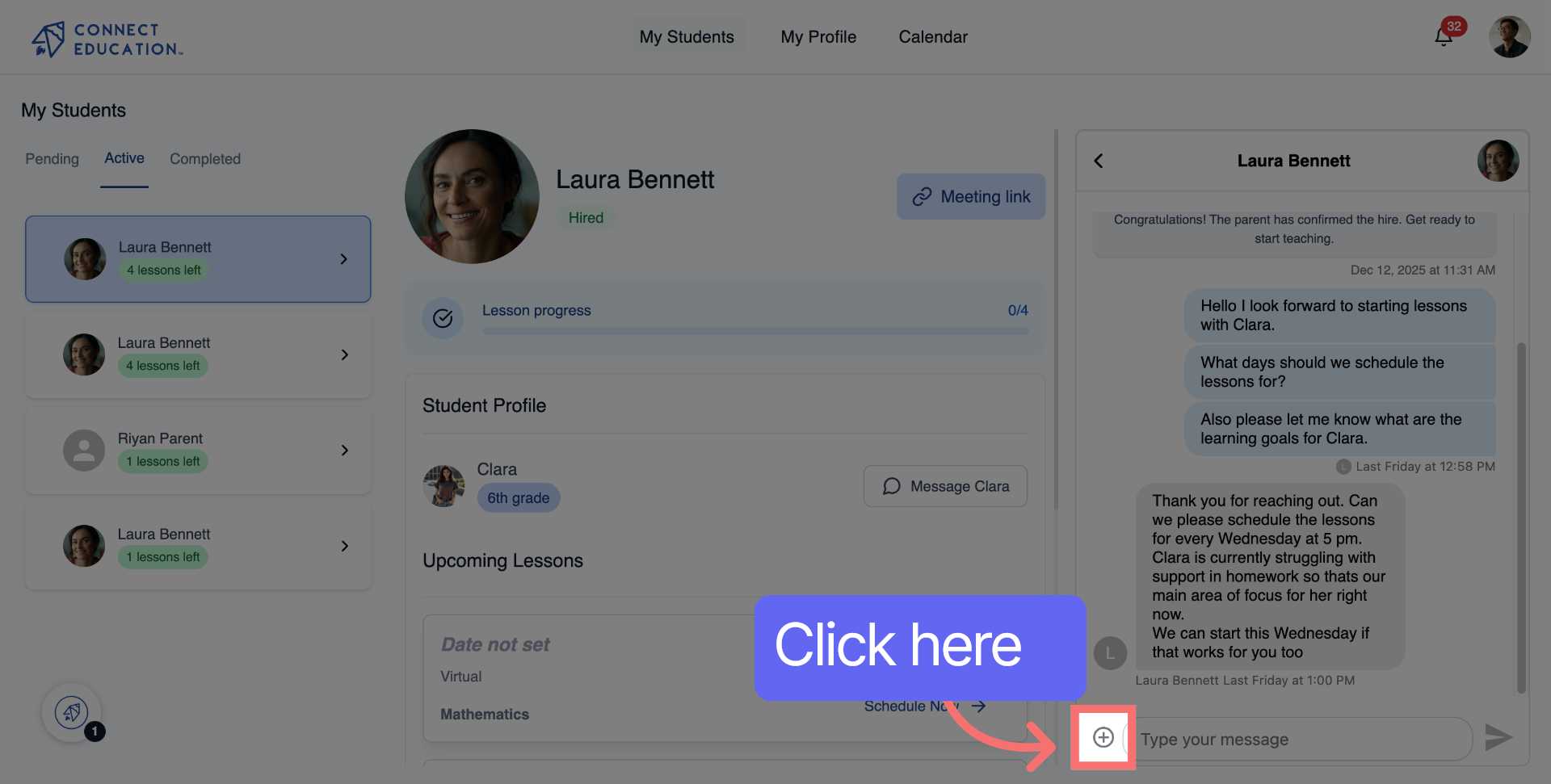
Select a document from your files and attach it to the chat.
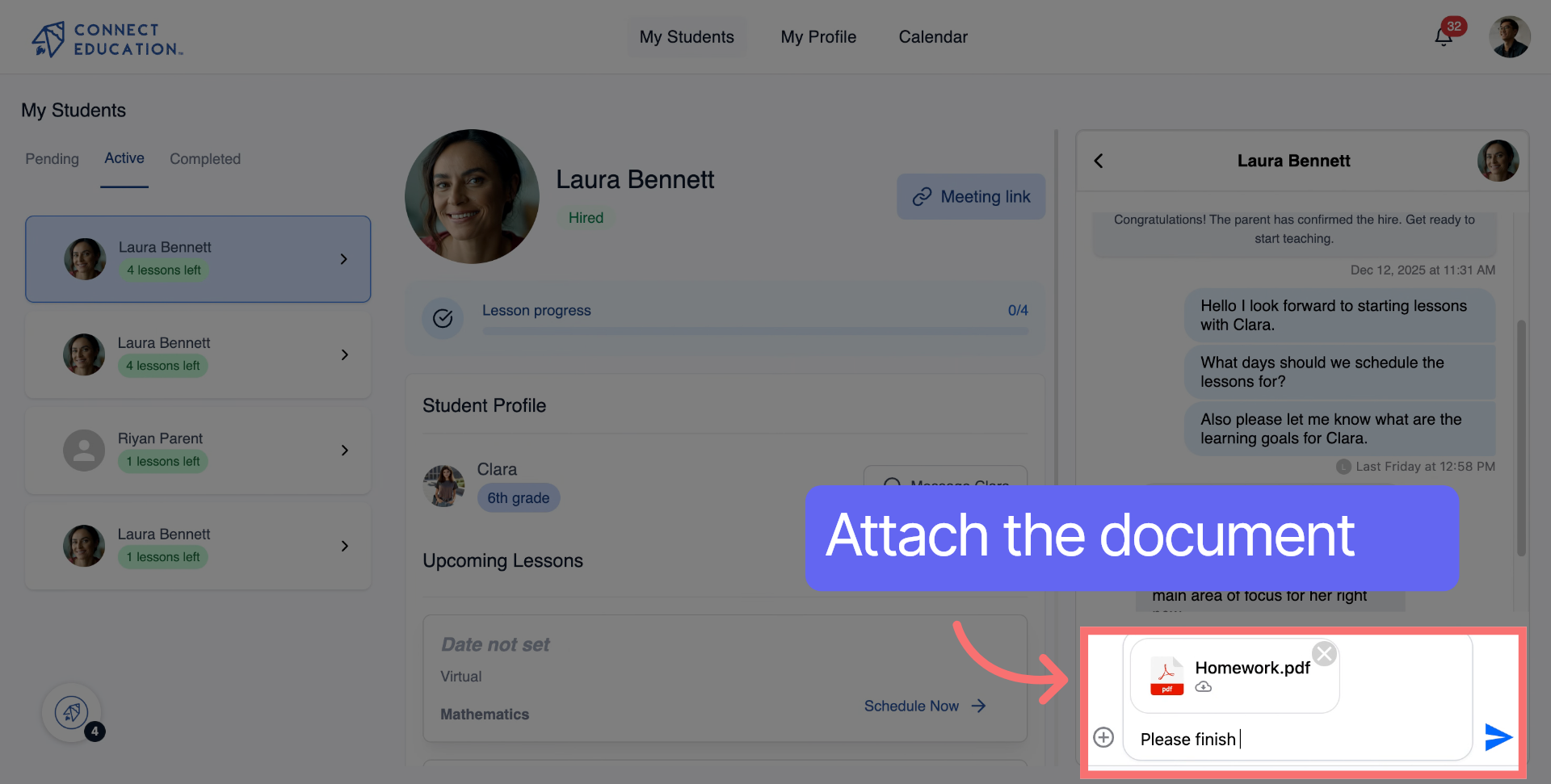
Click "enter" to send your message along with the attached document via chat.
You can submit PDF, Word, and image files as home assignments for students or progress reports for parents.
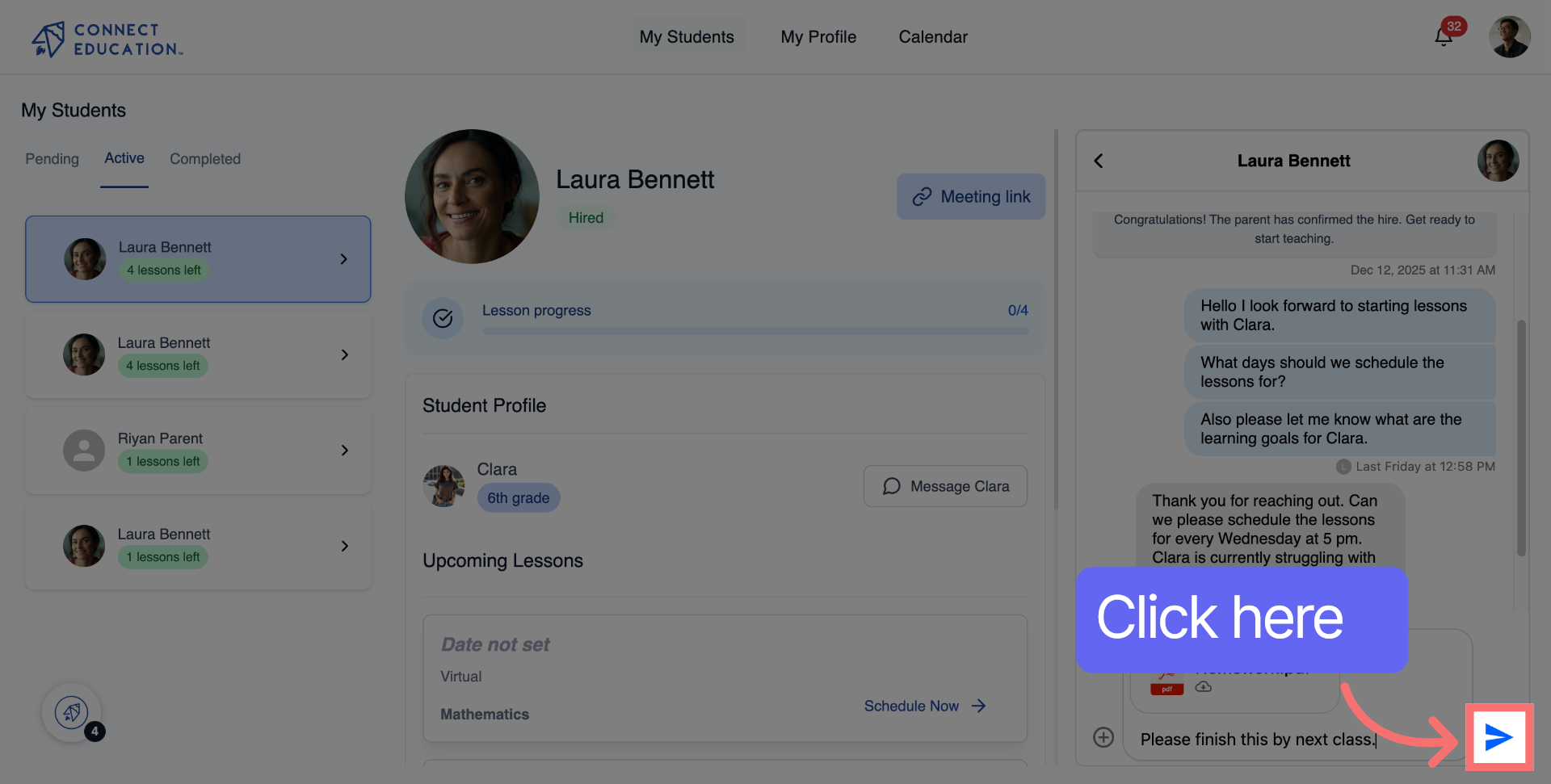
You can track previous conversations and replies in the same chat window for ongoing communication.



Questions about matching, scheduling or pricing? Reach us whichever way suits you, and our team will take it from there.


